Paper jams and feeding
Printer printing in reverse order: how to get pages and copies in the right sequence
Written by Fix a Printer Editorial Team · Updated
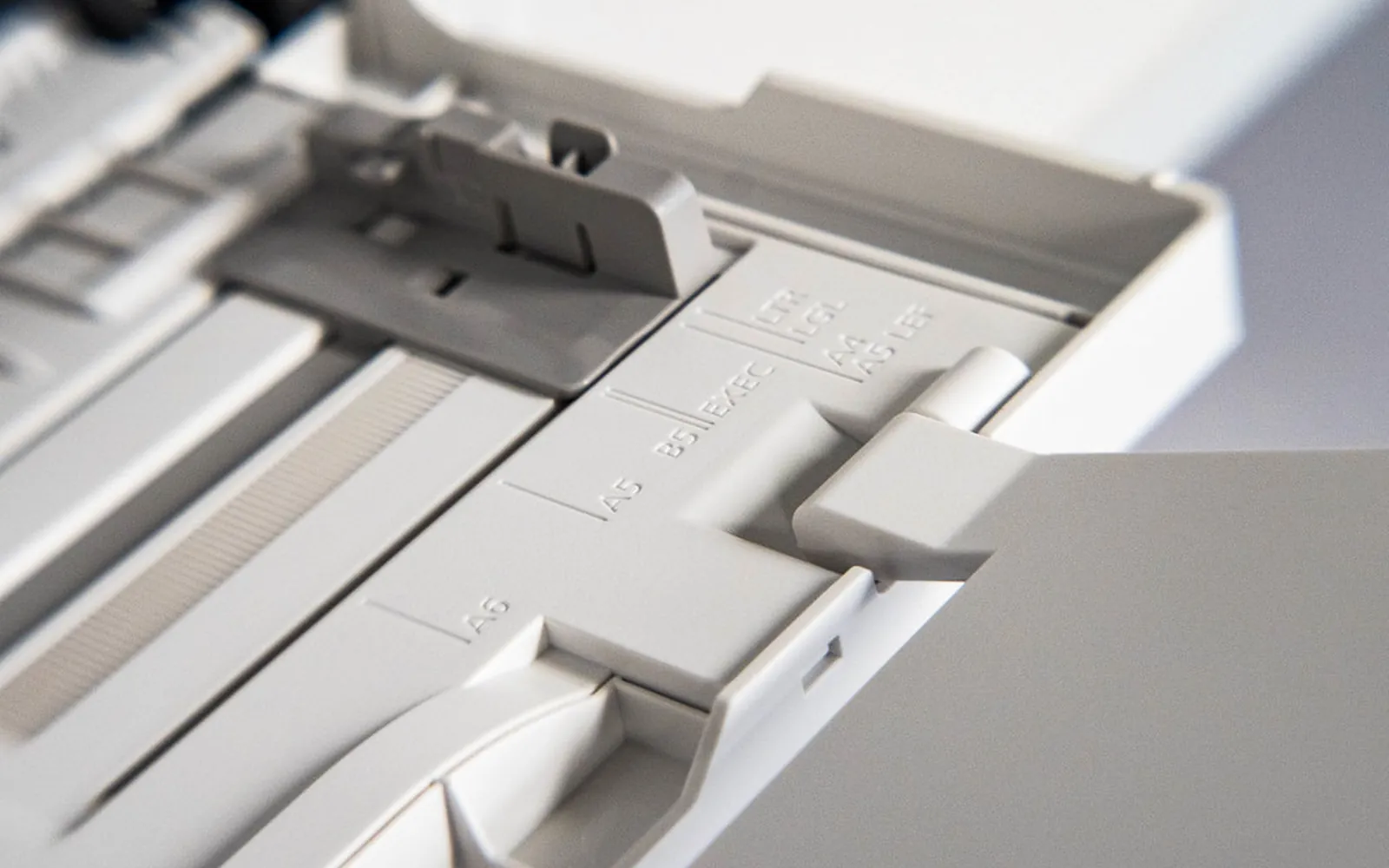
A printer printing in reverse order delivers a stack with the last page on top, so every multi-page document has to be shuffled by hand. Sometimes the opposite happens: you set reverse order once to fix it, and now pages come out backwards on a different printer. And sometimes copies arrive as three of page 1, three of page 2 and so on. All of these come down to a handful of settings in the driver, the app and the print dialog. This guide shows where they are and which one to use.
For other problems with how jobs come out, see printer printing double sided, printer printing wrong orientation and the printer troubleshooting guide.
Why page order depends on the printer
Printers print page 1 first unless told otherwise. What decides whether the stack ends up in order is how the sheets land:
- Face down: most laser printers and many inkjets deliver pages printed side down. Page 1 lands first, page 2 lands on top of it, face down. Turn the stack over and it reads 1, 2, 3. Normal order is right.
- Face up: some inkjets, printers with a straight-through rear exit and some special trays deliver pages printed side up. Page 1 lands at the bottom, the last page on top. Reverse order is needed so page 1 ends up on top.
That is why a setting that suits one printer gives the wrong result on another, and why the order can change if you switch output trays or open a rear exit door on a laser printer.
Step 1: Print a short test
Print a three-page document with large page numbers. Note:
- whether sheets come out printed side up or down,
- whether the finished stack reads 1-2-3 or 3-2-1 from the top.
If the stack is backwards, you need to switch to the other order. Change it in one place only, as described below. If both the app and the driver reverse the order, they cancel each other out, which is a common reason the order seems to change at random.
Step 2: Set page order in the printer driver (Windows)
Setting it in the driver makes it the default for every app.
- Open Settings > Bluetooth & devices > Printers & scanners and select the printer.
- Choose Printing preferences.
- Look for Page Order, Reverse Order, Print in reverse order or Front to back / Back to front. It is often on a Layout, Finishing, Basic or Advanced tab; drivers differ.
- Choose the order that suits how your printer stacks pages, then select OK.
If you cannot find the option, check Printer properties > Advanced. When Enable advanced printing features is turned off, Windows can hide options such as page order and pages per sheet. Turn it back on unless you turned it off on purpose to solve another problem.
Step 3: Check the app’s own setting
Several apps have their own reverse-order option that overrides or combines with the driver.
Microsoft Word for Windows. File > Options > Advanced, then the Print section, has Print pages in reverse order. Turn it off if the driver already handles order.
PDF readers. Many PDF readers have a Reverse pages option in the print dialog, sometimes under More options. If PDFs come out backwards while other documents do not, look there first. Other PDF printing problems are in printer won’t print PDF.
Browsers. Browsers usually follow the driver’s setting. If a web page prints backwards, check the driver first.
Step 4: Set page order on a Mac
- Choose File > Print.
- If you see only a short dialog, choose Show Details.
- Open the Paper Handling section from the pop-up menu (the exact location depends on the app and macOS version).
- Set Page Order to Automatic, Normal or Reverse. Automatic lets macOS choose based on the printer’s information, which is often right but not always.
- To keep the choice, save it as a preset from the Presets menu.
If your Mac has other printing problems, see printer not working on Mac.
Copies not collated
If you print several copies and get 1-1-1, 2-2-2, 3-3-3, the job is not collated.
- In the print dialog, tick Collate (on a Mac it is next to the number of copies).
- Check the driver’s Printing preferences too; some drivers have their own Collate setting, especially on office printers.
- Very large jobs may not collate in the printer’s memory. If a long document with many copies comes out uncollated, print one copy at a time, or print the copies as separate jobs.
Collation is also what decides how a duplex document stacks. If double-sided copies are out of order, check both Collate and the duplex setting; see printer printing double sided if the printer duplexes when you did not ask.
Manual double-sided printing
If your printer has no automatic duplex, apps can print one side of every sheet, then ask you to put the stack back in. The order of the second side depends on reloading the stack exactly as the on-screen instructions show. If the backs come out upside down or in the wrong order:
- reload the printed stack without shuffling it,
- follow the picture shown on screen or in the manual for which way up and which edge first,
- test with a three-page document before a long job.
Pages missing rather than reversed
If the stack is in order but pages are missing, the cause is different: a page range, an odd/even setting or a job that stopped part-way. See printer only prints the first page and, for jobs that repeat instead, printer keeps printing the same page.
Phones, tablets and print-from-USB
Printing from a phone or tablet uses the printer’s own defaults, or the options in the share or print screen of the app. Most mobile print screens do not offer a page order choice, so the printer’s stacking decides the result. If phone jobs always come out backwards, look in the printer’s own settings menu or its web page for a default page order or output tray option.
The same applies when you print straight from a USB stick or memory card on the printer’s control panel: the printer’s menu, not your computer, decides the order. Check the print settings shown on the panel before you press start.
Keep it consistent across computers
On an office printer used by several people, page order complaints often come from different computers using different drivers or settings. Use the same driver on each computer and set page order in the driver rather than in individual apps, so everyone gets the same result.
Frequently asked questions
Why does my printer print the last page first?
Either the app or driver is set to reverse order, or the printer delivers sheets face up so the first page ends up at the bottom of the stack. Check the Page Order setting in the driver and the app, and look at whether pages come out printed side up or down.
How do I make my printer print in the right order?
If pages land face down, use normal order; if they land face up, use reverse order so page 1 ends on top. Set it once in the printer's Printing Preferences in Windows, in Word's print options, in the PDF reader's print dialog, or under Paper Handling on a Mac.
Why are my copies not collated?
The Collate option is off, so the printer prints all copies of page 1, then all of page 2. Tick Collate in the print dialog. Some printers collate in their own memory and may not collate very large jobs; then print one copy at a time.
Where is reverse order in Word?
In Word for Windows, open File > Options > Advanced, scroll to the Print section and turn Print pages in reverse order on or off. If the printer driver also reverses the order, the two settings cancel each other out, so use only one.
Does manual double-sided printing affect page order?
Yes. Manual duplex prints one side of all sheets first and asks you to reinsert the stack. If the stack is turned or reinserted the wrong way, pages end up out of order or upside down. Follow the on-screen picture for how to reload the paper.
Sources
Editorial team
The Fix a Printer team writes and updates independent printer troubleshooting guides, checking Windows and macOS steps against Microsoft and Apple documentation.


