Print quality
Printer printing only half the page: how to find the cause
Written by Fix a Printer Editorial Team · Updated

A printer printing half a page can mean three different problems, and the shape of the fault tells you which one you have. Before changing anything, look at a failed page and decide which of these matches:
- The top part prints, then the page stops and ejects. The printer ran out of data for that page.
- One side (left, right, top or bottom) is blank, but what does print looks normal. The page layout does not fit the paper.
- The whole page prints, but one half is faint or missing color. That is a supplies or print head problem.
Each has its own section below. Start with the test in Step 1, which tells you whether the computer or the printer is at fault.
Step 1: Print the printer’s own test page
From the printer’s menu, print a configuration, status or test page. It is generated inside the printer, so the computer and the network play no part.
- The test page prints fully: the printer can print a whole page. Look at the job or the computer side, sections A and B.
- The test page is cut off or half faint: the printer itself needs attention, section C.
A. The page stops partway down
The printer printed what it received and then had nothing more for that page. Common causes:
- A complex page. Large photos, detailed graphics, many fonts or a scanned page can produce a very large job. Older and entry-level laser printers in particular may run out of memory on such pages and print only part of them, sometimes with a memory message on the display.
- A corrupted or unusual file. If only one document does it, the file is the suspect. Save a fresh copy, export it to PDF again or print from a different app.
- A PDF the printer struggles to render. Try a different PDF reader, or use the reader’s option to print as image. Printer won’t print PDF covers PDF problems in more detail.
- The job was cut off in transit. A network printer that drops off Wi-Fi mid-job, or a spooler problem on the computer, can deliver an incomplete job. Clear the queue and restart the Print Spooler service as in the print spooler error fix. If the printer often drops off the network, see printer keeps disconnecting from Wi-Fi.
- A wrong or damaged driver. A driver that does not match the printer can send data the printer cannot finish. If pages also contain stray symbols, see printer printing gibberish.
What to try, in order:
- Print a short plain-text document. If it prints fully, the problem is the original document’s size or content.
- In the print dialog, reduce the print quality or resolution for that job, which makes the job smaller.
- Some drivers offer an option to print text as graphics or to send the page as an image (raster). Trying the other setting can help.
- Update the driver, or try the other driver the maker offers (some printers have both a PCL and a PostScript driver, for example).
B. One side of the page is blank
If what prints looks right but stops at a straight edge, the page is being placed partly outside the printable area or the paper.
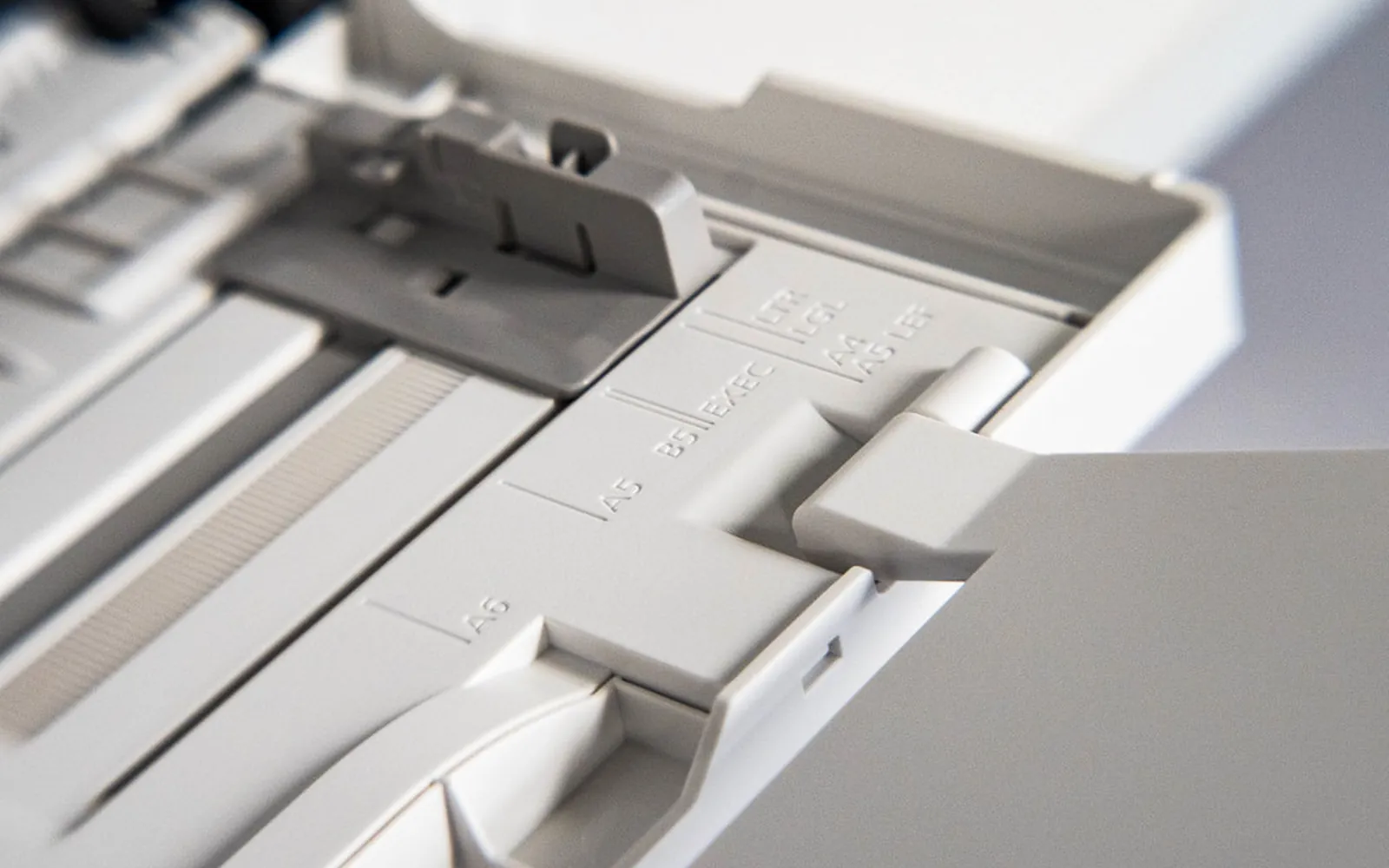
- Paper size mismatch. A document set to A4 printed on US Letter, or the reverse, loses a strip at one edge. Make the size match in the app, the print dialog and the tray setting.
- Orientation. A landscape page printed in portrait loses its right side. Check the orientation in the app and the driver.
- Scaling. Choose Fit to page or Shrink to fit in the print dialog so the whole page lands on the paper.
- Two pages per sheet or poster settings. A leftover layout option such as pages per sheet, booklet or poster can place content in only part of the sheet. Reset layout options to one page per sheet.
Printer cutting off edges goes through margin and scaling settings step by step. If the content prints at an angle so one corner is lost, see printer printing skewed.
C. Half the page is faint or missing
When the printer’s own test page shows the problem, look at the supplies.
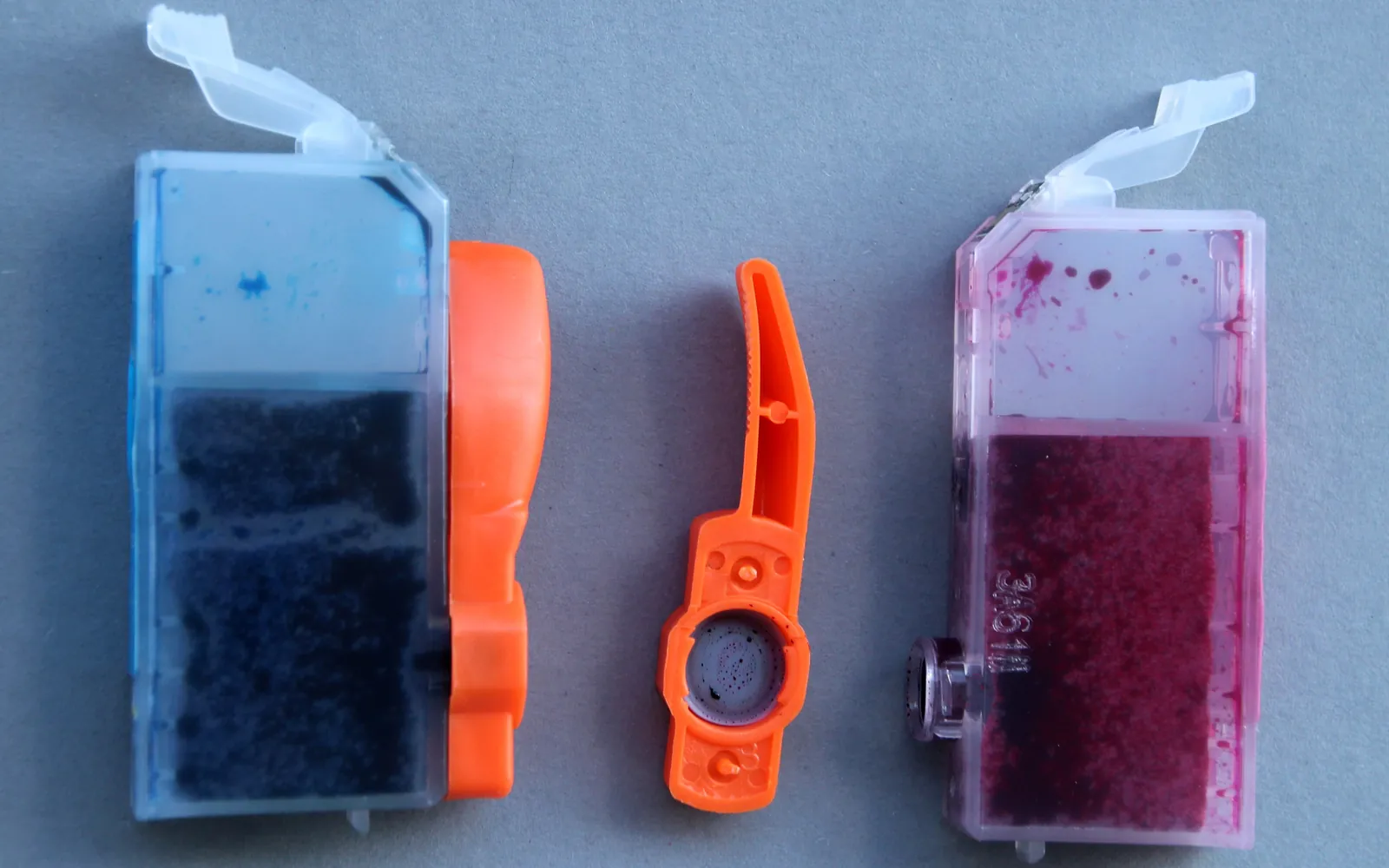
- Laser printers: a cartridge with toner piled to one side can print one half lighter. Remove the cartridge and rock it gently side to side, then reinstall it. If one half stays faint, or the light area has a hard edge, the drum or toner cartridge may be worn or damaged. Printer printing faded covers laser fading.
- Inkjet printers: a clogged part of the print head can leave one band or one side light or blank. Print a nozzle check and run a head cleaning. If the printer has been idle for a while, read printer ink dried out.
- Paper feeding at an angle: a sheet that feeds crooked can leave a wedge of the page blank. Check the paper guides.
Half the document, not half the page
Some people describe a different problem as “half the page”: the printer prints some pages of a document and silently skips the rest. That is a page-level problem rather than a problem inside the page, and it has different causes: a page range left in the print dialog, an Excel print area, a job too large for the printer’s memory or a stalled spooler. Printer only prints the first page covers those step by step.
The same memory limit explains both problems on some printers. A complex page can overflow the memory partway down (the page stops halfway), while a long job of simpler pages can overflow it after a page or two (the rest of the job disappears). If you see either with large, image-heavy documents, try:
- lowering the print quality from Best to Normal or Draft,
- a Print as image option in the PDF reader,
- printing smaller page ranges,
- reducing the size of photos in the document before printing.
If pages arrive complete but in the wrong order, see printer printing in reverse order.
Network and wireless printers
Half pages that appear only over Wi-Fi, but not over a USB cable, point to the connection. Large jobs take longer to send, and a weak signal or a printer that goes to sleep mid-job can cut them off. Move the printer closer to the router or connect it with a cable to test, and give it a fixed address on the network so the computer does not lose it between pages. Printer offline fix explains how to check the printer’s address and port.
Quick checklist
- Which half is missing decides where to look.
- Printer test page tells printer from computer.
- Matching paper size, orientation and Fit to page.
- Simpler document, lower quality, fresh copy of the file.
- Clean queue, stable connection, correct driver.
- Toner rocked, nozzles checked, paper fed straight.
Frequently asked questions
Why does my printer only print half the page?
If it prints the top part and stops, the job data is usually incomplete or too complex for the printer: a large image, a corrupted file, a network interruption or not enough printer memory. If one side of the page is blank, the paper size, orientation or scaling is usually wrong. If half the page is faint, look at toner or ink.
Why does the printer stop halfway down the page and eject it?
The printer reached the end of the data it received for that page. That happens when a job is cut off by a timeout, a network drop or a spooler problem, or when a page is too complex for the printer's memory. Printing a simpler test document shows which.
Can a PDF cause half-page printing?
Yes. Some PDFs contain fonts or graphics that a printer struggles to render. Printing the PDF as an image, from a different PDF reader, or after saving a fresh copy often fixes it.
How do I know if it is the printer or the computer?
Print the printer's own configuration or test page from its menu. If that page prints fully, the printer can print full pages and the problem is the job or the computer. If the test page is cut off or half faint, the printer itself needs attention.
Why does my printer print only some pages of a document?
That is a page-level problem: a page range in the print dialog, an app print area, a stalled spooler or a job too big for the printer's memory. Check the print dialog first, then print a short multi-page test from another app.
Sources
Editorial team
The Fix a Printer team writes and updates independent printer troubleshooting guides, checking Windows and macOS steps against Microsoft and Apple documentation.