Paper jams and feeding
Printer printing skewed or crooked: how to straighten your pages
Written by Fix a Printer Editorial Team · Updated
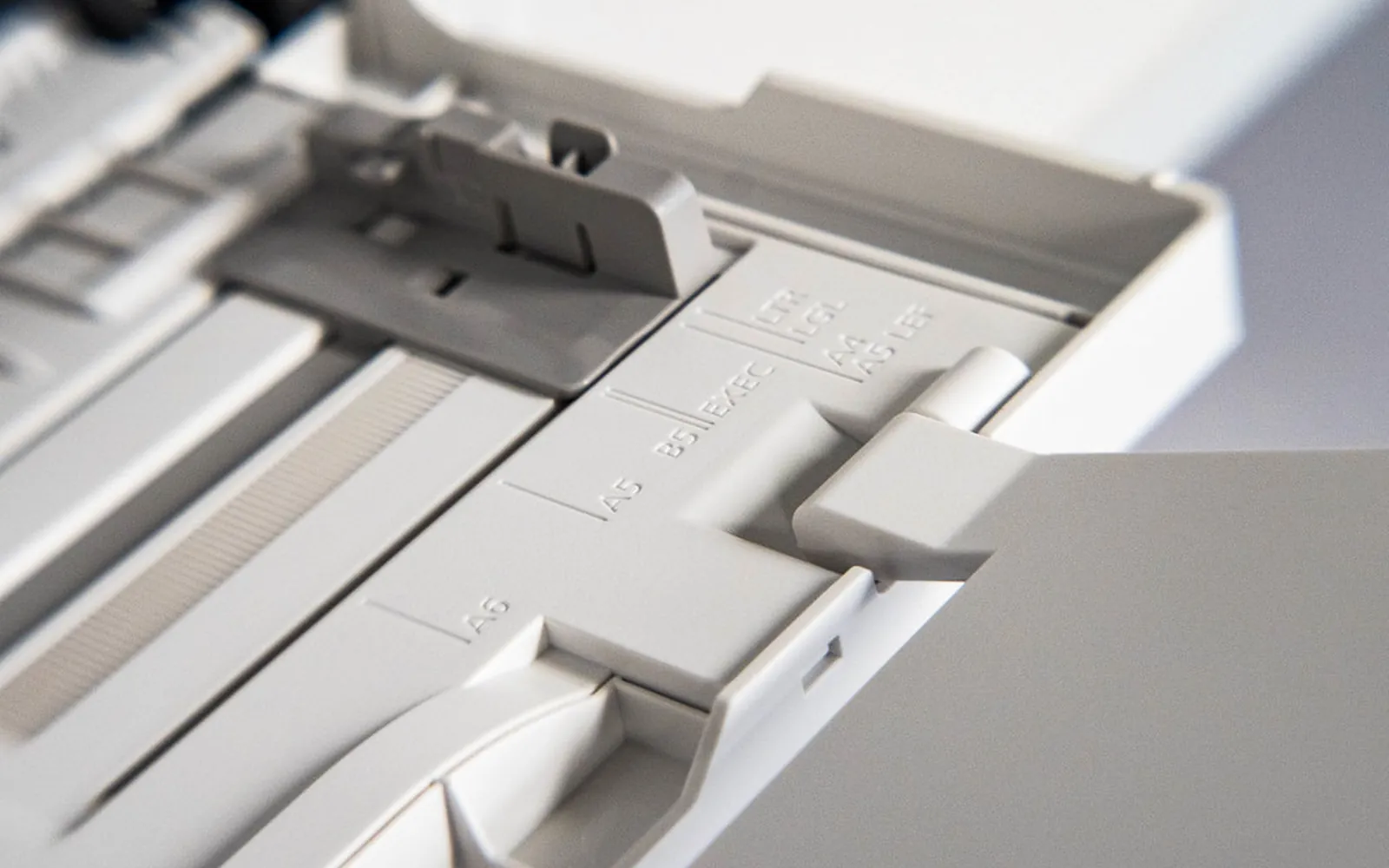
A printer printing skewed pages, with text running uphill or one margin wider at the top than at the bottom, is nearly always a paper feeding problem. The printer places the image in the same position every time; if the sheet enters at a slight angle, the image lands at that angle. So the fix is about how the paper is loaded and gripped, not about drivers or settings.
If the page is straight but some content is missing at the edges, see printer cutting off edges. If paper creases as well as twisting, see printer wrinkling paper. All symptoms are listed in the printer troubleshooting guide.
First: is it skew or misalignment?
- Skew: the whole image is rotated or shifted on the sheet. Margins differ from top to bottom or left to right.
- Print head misalignment (inkjet): vertical lines look broken, jagged or doubled, or color sits slightly off the black outline. The page itself is straight. Run the print head alignment from the printer’s maintenance menu for that.
The rest of this guide is about skew.
Step 1: Reload the tray and set the guides
- Take all the paper out of the tray.
- Tap the stack on a flat surface so the edges line up.
- Load it below the fill mark. An overfilled tray pushes the top sheet up against the roller at an angle.
- Slide the side guides in until they touch the stack. They should not bend or bow the paper.
- Set the rear guide (or front guide on some trays) to the paper length, so the stack cannot shift back and forth.
- Push the tray in firmly until it clicks.
Loose guides are the single most common cause of crooked prints, especially after someone has loaded a smaller paper size.
Step 2: Use one kind of flat paper
- Do not mix paper types in one tray. Different weights and finishes slide differently, and the roller can push one sheet at an angle.
- Fan the stack before loading, so sheets are not stuck together.
- Check for curl. Curled paper does not lie flat under the roller. Turn the stack over, or replace it.
- Keep paper dry. Paper takes in moisture from the air, which makes it curl and cockle. Store it sealed in its wrapper, flat, away from damp rooms.
If the printer also takes several sheets at once, see printer pulling multiple sheets.
Step 3: Check the rear tray or manual feed
Single sheets fed through a rear tray or manual slot skew easily, because there is no stack to hold them square. Use the guide, insert the sheet straight until you feel it meet resistance, and let the printer pull it in. For envelopes and card, follow the orientation shown on the slot.
Step 4: Clean the rollers
Pickup and feed rollers need even grip across their width. Dust, paper fibres or toner on one end, or a roller worn shiny, make one side of the sheet move faster than the other.
- Switch off and unplug the printer.
- Remove the tray and locate the pickup roller (your printer’s user guide shows where).
- Wipe the roller with a lint-free cloth lightly dampened with water, turning it to reach the whole surface.
- Let it dry fully before switching back on.
If the rollers are glazed, cracked or hard, they need replacing. Printer not picking up paper explains how to tell.
Step 5: Look for obstructions in the paper path
A scrap of torn paper, a label or a staple caught in the paper path can snag one corner of each sheet and twist it. With the printer off, open the access doors and look along the path with a torch. Remove anything you can reach with your fingers. How to clear a paper jam shows the safe way to open and check the paper path.
Step 6: Check two-sided printing
If only the back side of two-sided pages is crooked, the sheet is being twisted on the return path. Damp or curled paper is the usual cause. Try fresh, dry paper. If the problem stays, the duplex rollers may need cleaning; some printers have a removable duplex unit that makes this easy.
Step 7: Crooked copies and scans
When copies are crooked but prints from the computer are straight, the printer is fine and the original is the problem.
- On the glass: place the original face down, squarely against the corner mark, and close the lid gently so it does not shift.
- In the document feeder: set the feeder guides to touch the originals, remove staples and do not overload it. Dirty feeder rollers can turn originals as they pass; clean them the same way as the paper tray rollers.
Step 8: Check the page setup
Rarely, a document has uneven margins or an offset in its page setup, or the driver has a margin or image shift setting. Print the printer’s own test page: if it is straight, compare the margins in your document’s page setup.
When skew starts after a jam
If pages were straight until a recent jam, something from the jam is probably still inside, or a guide or roller was knocked. Look again for a torn corner of paper, especially around the rear door and the duplex path, and make sure any part you removed during the jam (a rear door, a duplex unit, a guide) is clicked fully back into place. A part that sits slightly out of position guides the paper at an angle. If the printer still reports a jam with no paper visible, see paper jam but no paper.
Skew or a print head out of alignment?
A whole page that is turned on the sheet is a paper feed problem: the paper went in at an angle. Straight lines that look jagged, stepped or broken while the page itself is square are a different problem: on inkjets, the print head is out of alignment. The two can look alike on a table or a form, so hold the page up and check whether the edges of the printed area are parallel to the edges of the paper. If they are, run the head alignment from the printer’s maintenance menu; printer head alignment explains how. If they are not, and the guides are set correctly, the rollers are the next suspect: how to clean printer rollers covers cleaning and when to replace them.
Quick checklist
- Guides touching the stack, tray not overfilled.
- One paper type, fanned, flat and dry.
- Clean, grippy rollers.
- Nothing caught in the paper path.
- Originals placed squarely for copies.
Frequently asked questions
Why is my printer printing crooked?
In most cases the paper is feeding at an angle. Loose or overtight paper guides, an overfilled tray, mixed or curled paper and dirty or worn pickup rollers are the usual causes. Misaligned print heads cause a different problem: jagged or doubled lines rather than a tilted page.
How do I fix crooked copies?
Place the original squarely against the corner marks on the scanner glass and close the lid gently. In the document feeder, set the guides to touch the originals and do not overload it. If copies are straight from the glass but crooked from the feeder, clean the feeder rollers.
Is skewed printing the same as misaligned print heads?
No. A skewed page has its whole image rotated or shifted on the sheet. Print head misalignment shows as vertical lines that look broken or doubled, or color that does not line up with black. Use the alignment tool in the printer's maintenance menu for that.
Can the rear tray or manual feed cause skew?
Yes. Single sheets in a rear tray or manual slot are easy to insert at an angle. Use the guide, insert the sheet straight until you feel resistance, and do not push it past that point.
Sources
Editorial team
The Fix a Printer team writes and updates independent printer troubleshooting guides, checking Windows and macOS steps against Microsoft and Apple documentation.


