Drivers, queue and errors
Printer cartridge not recognized: how to fix it
Written by Fix a Printer Editorial Team · Updated
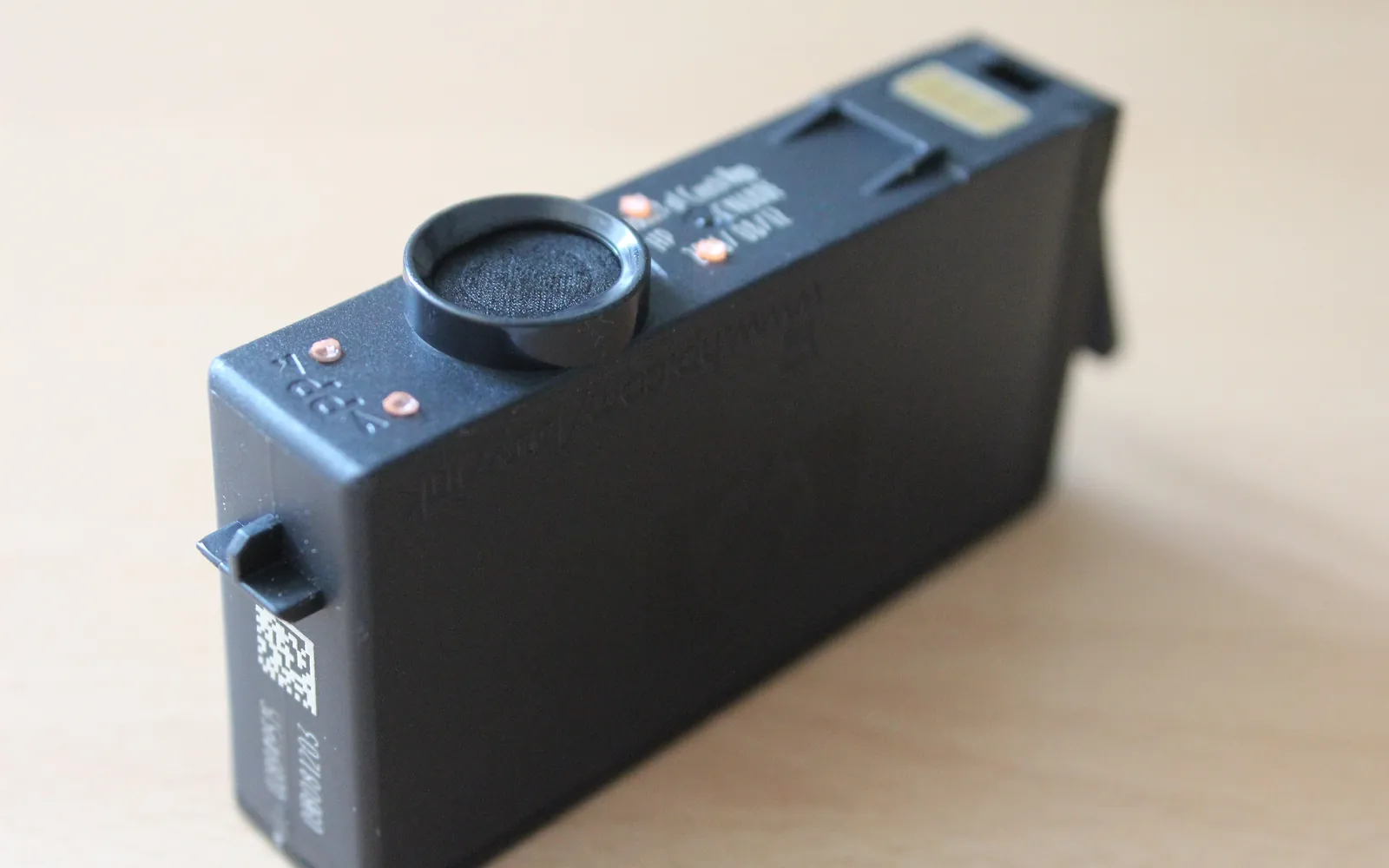
A printer cartridge not recognized message, or its cousins “incompatible cartridge”, “cartridge problem” and “check cartridge”, usually appears right after you install new ink or toner. The printer reads a small chip and electrical contacts on each cartridge. When that reading fails or the printer does not like the answer, it stops. Most of the time the cause is physical and takes a minute to fix.
If the printer accepts the cartridge but prints blank or faded pages, go to printer printing blank pages or printer printing lines or streaks.
If a new laser cartridge is accepted but the printer still says the toner is low, read toner low after a new cartridge.
Step 1: Check for leftover packaging
New cartridges are shipped with tape over the nozzles, contacts or air vent, and sometimes a plastic clip or cap. Remove the cartridge and check every side. A small piece of tape over the copper contacts is enough to make the printer see an empty slot. On laser toner cartridges, check that every orange or coloured shipping lock is removed and, where present, the sealing strip is pulled out.
Step 2: Reseat the cartridge
- Open the cartridge door and wait for the carriage to stop moving (inkjets).
- Remove the cartridge.
- Check you are using the right slot; colour slots are usually labelled.
- Insert it again and press firmly until it clicks or the latch closes. Some cartridges need pushing down at the back, others at the front; the diagram inside the door shows how.
- Close the door and wait for the printer to finish checking.
Step 3: Clean the contacts
Dried ink, dust or fingerprints on the contacts stop the printer reading the chip.
- Turn the printer off and unplug it.
- Remove the cartridge and hold it by the sides, without touching the contacts or nozzles.
- Wipe the copper contacts gently with a lint-free cloth, dry or barely dampened with water.
- Look at the matching contacts inside the carriage. If you see ink or dust, wipe them gently with a dry cotton swab. Do not bend any springs.
- Let everything dry for a few minutes, reinstall and power on.
Step 4: Check the cartridge number
Printers accept only specific cartridge numbers, and similar-looking numbers often belong to different printer families. Compare the number on the cartridge box with the list in your printer’s manual, on the label inside the cartridge door, or on the manufacturer’s site for your exact model. Some cartridge families also differ by region, and a printer may only accept cartridges for the region where it was set up.
Step 5: Reset the printer
Turn the printer off with its power button, unplug it for about a minute, plug it back in and turn it on. Many printers re-read every cartridge chip at start-up.
Step 6: Third-party and refilled cartridges
Compatible and refilled cartridges use chips made by someone other than the printer maker. Many work fine, but some printers reject them, and printer firmware updates have changed which chips are accepted. If only a third-party cartridge is rejected:
- Contact the seller; reputable sellers replace cartridges that do not work.
- Check whether your printer’s settings include an option about cartridge protection or dynamic security, and read the manufacturer’s explanation for your model before changing it.
- Before installing firmware updates, read the release notes if you rely on third-party supplies.
Step 7: Try a known-good cartridge
If you have another cartridge for the same slot, ideally one that worked before, try it. If it is also rejected, the problem is in the printer: a damaged contact in the carriage, a broken latch or a failed board. That is a repair job; for a low-cost inkjet, compare the repair cost with a replacement printer.
Not recognized, empty or low: know the difference
Printers use several similar messages, and they need different responses:
- Not recognized, missing or incompatible: the printer cannot read the cartridge or does not accept it. Work through steps 1 to 7.
- Low ink or toner: the cartridge is accepted and the printer estimates it is running out. You can usually keep printing until quality drops. Estimates are not exact, so keep a spare rather than replacing at the first warning.
- Empty or replace now: the printer has counted the cartridge as used up. A new cartridge is the fix; a refilled one may still report as empty because the chip remembers its count.
- Used or previously installed cartridge: some printers warn when a cartridge has been in another printer or was refilled. This is information rather than a fault, and the printer may ask you to confirm before it continues.
Recognized, but the print is still wrong
Once the error clears, print a nozzle check or quality report. A cartridge can be accepted and still not deliver ink properly, especially if it sat unused or was installed with tape still over the vent.
- Colour prints but black text is missing or weak: see printer not printing black. The black cartridge often uses a separate set of nozzles that dry out on their own.
- Everything is pale: see printer printing faded.
- Colours look wrong after replacing one cartridge: check that each cartridge is in its own coloured slot, then see printer printing wrong colors.
Laser toner cartridges
Laser printers show similar messages, such as “toner not detected” or “replace toner” right after a new cartridge goes in. The checks are the same in spirit: remove every shipping lock and the sealing strip, make sure the cartridge slides fully home along its guides, and close the front cover firmly so the cover sensor registers. On printers with a separate drum unit, check that the toner cartridge is locked into the drum unit before the pair goes back in; a toner that is not clicked into the drum is a common cause of “not detected” messages.
Quick reference
| Message or behaviour | Most likely cause | Try |
|---|---|---|
| Not recognized right after install | Tape or not seated | Steps 1 and 2 |
| Error comes and goes | Dirty contacts | Step 3 |
| Incompatible cartridge | Wrong number or region | Step 4 |
| Only third-party cartridge rejected | Chip not accepted | Step 6 |
| Every cartridge rejected | Carriage or board fault | Step 7 |
For other error messages, the printer troubleshooting guide lists every fix by symptom, and printer in error state explains the generic “Error” status in Windows.
Frequently asked questions
Why does my printer not recognize a new cartridge?
Common reasons are protective tape still on the contacts or nozzles, a cartridge that has not clicked into place, dirty contacts, a cartridge meant for a different model or region, or a chip the printer does not accept.
How do I clean ink cartridge contacts?
Remove the cartridge, hold it by the sides, and wipe the copper contacts gently with a dry lint-free cloth or one barely dampened with water. Also wipe the matching contacts inside the carriage with the printer unplugged. Let everything dry before reinstalling.
Do compatible or refilled cartridges cause errors?
They can. Third-party cartridges use their own chips, and some printers reject them, especially after a firmware update. If a compatible cartridge is rejected, contact the seller for a replacement, or test with a cartridge from the printer maker.
Can a cartridge be region-locked?
Some printers only accept cartridges sold for the region where the printer was first used. If you bought cartridges abroad or online from another country, check the packaging and the manufacturer's information for your model.
Can I keep printing while one cartridge is not recognized?
It depends on the model. Some printers offer a temporary mode that prints with the remaining cartridges, for example black only, while others stop completely until every slot holds an accepted cartridge. The printer's manual says which applies to yours.
Sources
Editorial team
The Fix a Printer team writes and updates independent printer troubleshooting guides, checking Windows and macOS steps against Microsoft and Apple documentation.