Print quality
Toner low message after installing a new cartridge: what to check
Written by Fix a Printer Editorial Team · Updated

A toner low after new cartridge message is maddening: you paid for a full cartridge and the printer insists it is nearly empty. The printer is not measuring the powder directly in most cases. It reads a chip on the cartridge, a counter in its memory, or a sensor, and any of those can report the wrong thing for simple reasons. This guide starts with the physical checks, then sorts out toner versus drum messages, then covers chips and counters.
If the printer refuses the cartridge altogether rather than reporting it as low, see cartridge not recognized. If the toner is genuinely new but the prints are pale, see printer printing faded.
Step 1: Remove every seal and tab
Toner cartridges ship with packing that keeps the powder inside during transport. Depending on the model that can be:
- a long pull tab or strip that you draw out of the side of the cartridge,
- orange or coloured plastic clips or covers on the drum or roller area,
- tape across the cartridge body.
If a seal is still in place, little or no toner reaches the developer, and some printers read that as low toner. Take the cartridge out and compare it with the pictures in the instructions that came with it.
Step 2: Reseat the cartridge and close every cover
- Hold the cartridge level and gently rock it side to side a few times to spread the toner evenly.
- Insert it until it clicks or locks into place. On printers where the toner fits into a drum unit, make sure the toner is locked into the drum before the pair goes into the printer.
- Close every door fully. A cover that is not latched can stop the printer reading the cartridge.
Step 3: Read the message carefully
Laser printers can show several similar messages, and they mean different things:
- Toner low / Replace toner / Toner end: about the toner cartridge.
- Drum end / Replace drum / Drum life: about the drum unit. On many printers the drum is a separate part that lasts through several toner cartridges. Fitting a new toner does not clear a drum message.
- Imaging unit / Image drum: on some models, a combined unit with its own life count.
- Non-genuine or unknown cartridge: about recognition, not level.
If the message is about the drum, check your user guide for the drum replacement and drum counter steps for your model. Note the life of the drum is separate from the toner’s.
Step 4: Clean the chip contacts
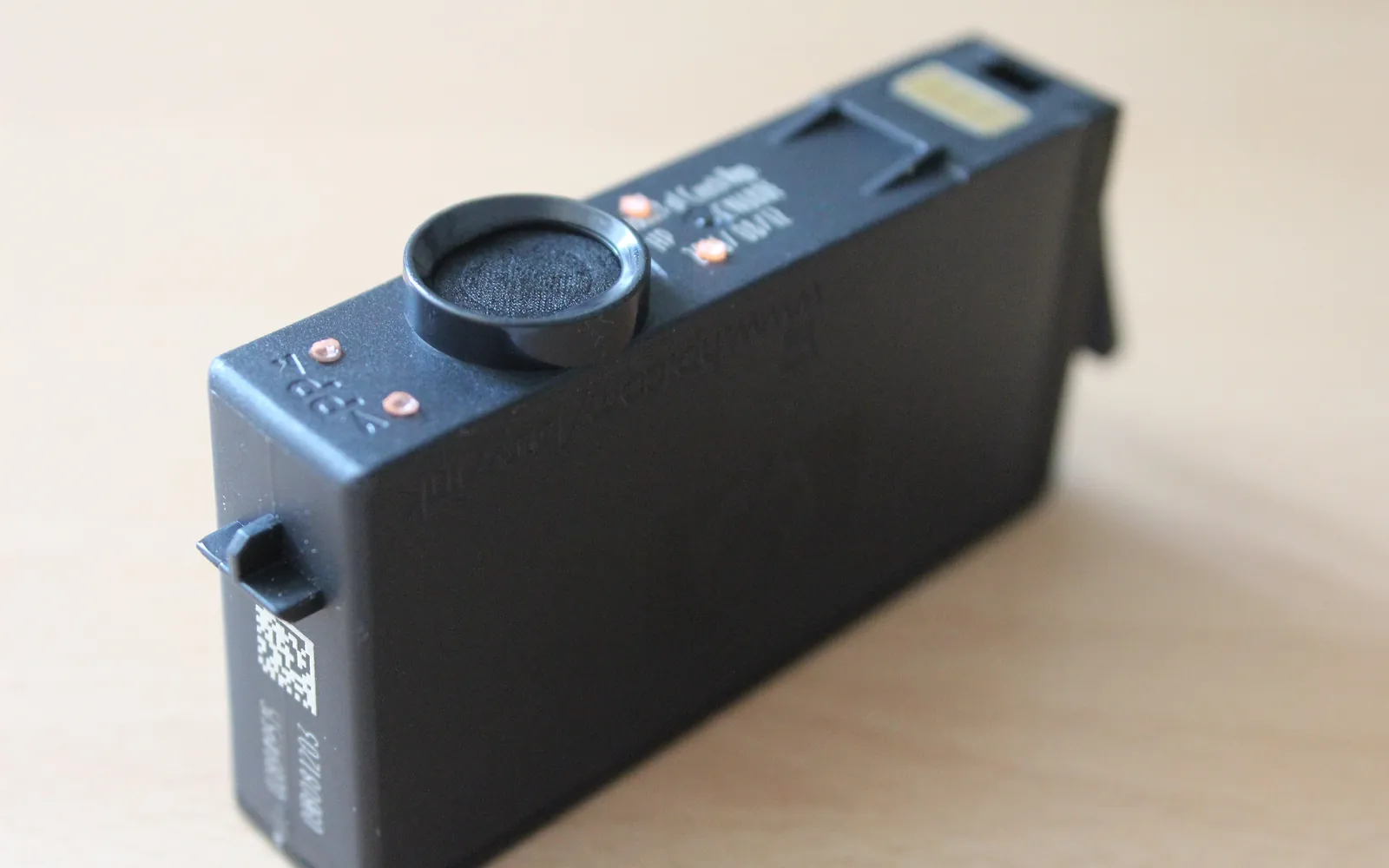
Most current toner cartridges carry a small chip with metal contacts. Dust, toner or fingerprints on those contacts can stop the printer reading the new level.
- Switch off the printer and remove the cartridge.
- Find the chip, usually a small board on one end or side.
- Wipe the contacts gently with a dry lint-free cloth. Do not use liquids or anything abrasive.
- Check that the printer’s matching contacts are clean and not bent, without touching them with tools.
- Reinstall the cartridge.
Step 5: Restart the printer
Switch the printer off with its power button, wait about a minute and switch it back on. Many printers read the cartridge again only during start-up or after a door is closed. Then check the supply level on the display or by printing a supplies or status report from the printer’s menu.
On the computer side, the level shown in the maker’s app can lag behind. Trust the printer’s own display or report first.
Step 6: Starter, remanufactured and refilled cartridges
- Starter cartridges: many printers ship with a starter cartridge that holds less toner than a standard one. If the first message appears soon after setup, that may simply be accurate.
- Remanufactured and compatible cartridges: the level is read from their chip. If the chip was not replaced or reset when the cartridge was made, the printer may show the old level. The cartridge may still print normally; contact the seller about a working chip or replacement.
- Refilled cartridges: a refill does not reset the chip by itself. Some printers keep printing with a warning; others need a new chip.
Step 7: Counters and reset steps
Some printers track toner and drum use with counters and expect you to confirm a replacement. That might be a menu option, a prompt on the display after you open the cover, or a documented button sequence. Follow only the procedure in your model’s user guide or on the maker’s support site. Resetting the drum counter when you changed the toner, or the other way round, hides real warnings and can let a worn drum spoil prints.
When the message is right
If the cartridge is genuine, sealed until today, fully seated and read correctly, yet the printer still reports low toner, the cartridge may be faulty or an old stock item. Contact the seller. Keep the box and receipt; most sellers ask for them.
Ghost images and repeated marks after a cartridge change point to the drum or fuser rather than the toner level; see laser printer ghosting.
When the cover message will not clear
After a cartridge change, some printers show a cover open or door open message instead of, or as well as, a toner message. A toner or drum unit that sits slightly too far forward stops the front cover closing fully, so the switch tab on the cover never presses its switch, and the printer will not re-read the new cartridge until the cover registers as closed. Take the cartridge out, check the drum and toner are locked together, push it in until it clicks and close the cover firmly at the centre. If the message stays, printer door open error covers the other covers and the switch tabs. Never tape or wedge a cover switch; on lasers it is a safety interlock.
Quick checklist
- All seals, tabs and covers removed.
- Cartridge rocked, locked in and every door closed.
- Toner message, not drum message.
- Chip contacts clean, printer restarted.
- Starter or remanufactured cartridge taken into account.
- Model-specific reset only from the user guide.
Frequently asked questions
Why does my printer still say toner low after I put in a new cartridge?
The usual reasons are a seal or tab still on the cartridge, a cartridge that is not fully seated, dirty chip contacts, a printer that has not re-read the cartridge since it was installed, or confusion between a toner message and a drum message. Refilled and some compatible cartridges can also report the wrong level.
What is the difference between toner and drum?
Toner is the powder that forms the image. The drum is the photosensitive part that transfers it to the paper. On many printers the drum is a separate unit that lasts longer than several toner cartridges and has its own replace message. A new toner cartridge does not clear a drum message.
Do I need to reset the toner counter?
Most printers read the new level from the cartridge chip automatically. Some models, particularly ones that track usage with a counter, have a documented reset step for the toner or the drum. Use only the procedure in your model's user guide, because resetting the wrong counter can hide a real warning.
Why does a compatible or refilled toner show as empty?
The level shown is usually read from the cartridge chip. If the chip was not replaced or reset when the cartridge was refilled, the printer may still read the old level. The cartridge may print normally despite the message; contact the seller about a replacement chip or cartridge.
Can I keep printing when the printer says toner low?
Usually yes. A low warning is an early notice and many printers keep printing until the print quality fades. Some printers stop at an empty or end-of-life message, and some offer a setting to continue printing. Check the display wording and your user guide.
Sources
Editorial team
The Fix a Printer team writes and updates independent printer troubleshooting guides, checking Windows and macOS steps against Microsoft and Apple documentation.