Print quality
Printer printing lines or streaks: what causes them and how to fix it
Written by Fix a Printer Editorial Team · Updated
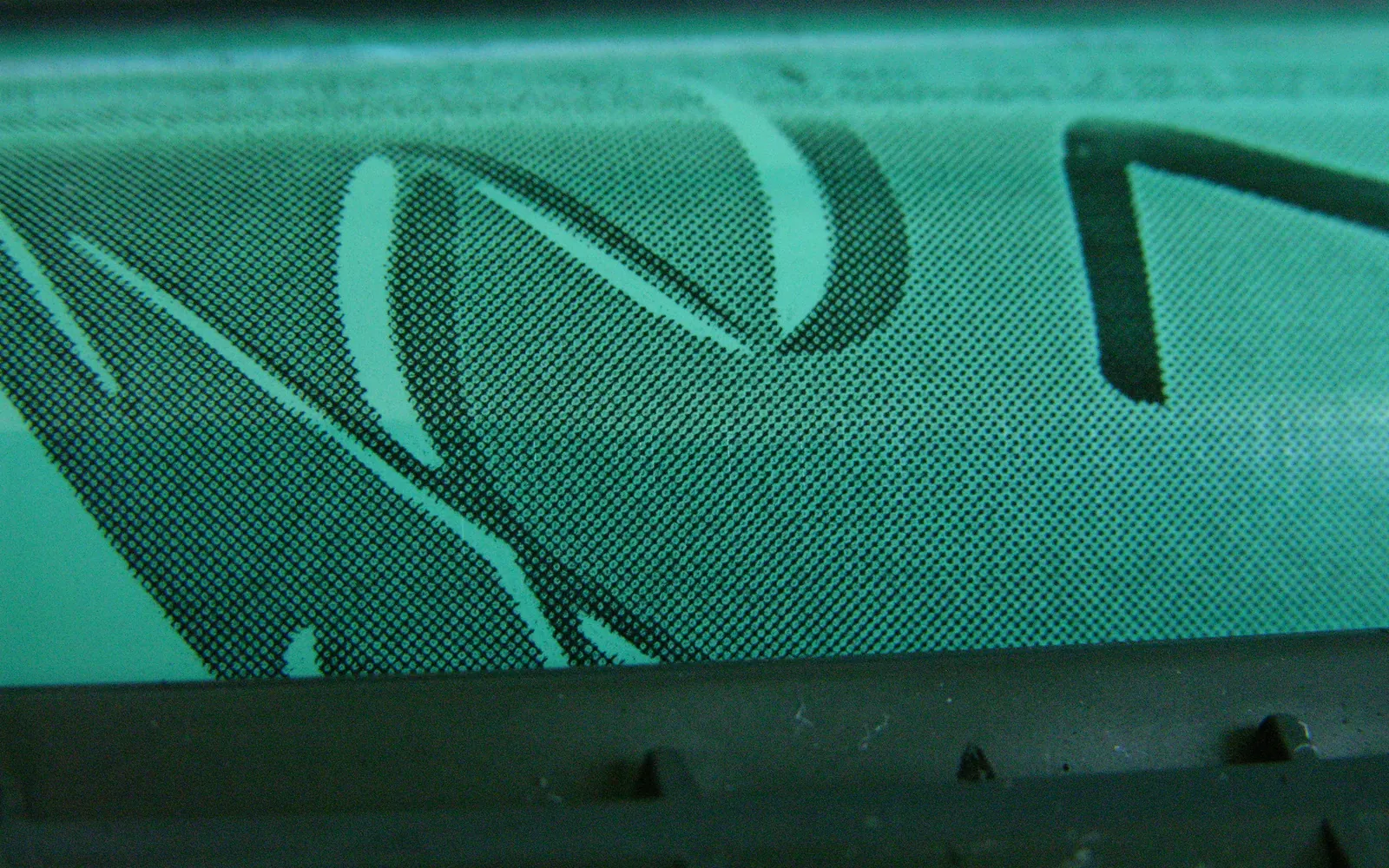
A printer printing lines or streaks is telling you which part is struggling, if you know how to read the page. Lines across the page on an inkjet mean something different from lines down the page on a laser printer, and the fix is different too. This guide shows you how to identify the pattern, then fix it with the cheapest step first.
If the pages come out completely blank instead, go to printer printing blank pages. For every other symptom, see the printer troubleshooting guide.
Streaks on an inkjet that has not been used for weeks are usually dried ink in the nozzles; printer ink dried out shows how to clear it without wasting ink.
First: print a test page from the printer
Use the printer’s own maintenance menu to print a nozzle check (inkjet) or a print quality or configuration page (laser). If the test page is clean but your documents have lines, check the document’s resolution and the quality setting in the print dialog. If the test page shows the same lines, the cause is in the printer.
Inkjet printers
Horizontal white lines (banding)
Thin, evenly spaced white or pale lines across text and pictures mean some nozzles in the print head are not firing. On the nozzle check, you will see gaps in the pattern for one or more colours.
- Run Head cleaning from the maintenance menu or the printer software.
- Print another nozzle check.
- Repeat up to three times if each cycle improves the pattern.
- If nothing improves, stop and leave the printer switched on for several hours, then try once more.
A cartridge that is nearly empty can also cause banding before the printer warns you. If only one colour is affected and its level is low, replace that cartridge first.
When the missing nozzles all belong to one colour, the rest of the image can shift colour too, because the printer cannot mix shades correctly. If greens look blue or skin tones look grey, see printer printing wrong colors. If black text is the part breaking up, see printer not printing black.
Jagged, doubled or misaligned lines
If vertical lines in tables look stepped, or text looks slightly blurred or doubled, the print head needs alignment. Run Print head alignment from the maintenance menu. Some printers do it automatically by scanning a printed sheet; others ask you to choose the best pattern. Alignment is also worth running after you replace a print head or move the printer.
Smudges and ink streaks
- Make sure the paper type in the print dialog matches the paper. Printing on plain paper with a photo setting puts down too much ink, which smears.
- Check for ink on the rollers or the platen (the flat area under the print head). With the printer unplugged, wipe it gently with a damp lint-free cloth.
- Thick or curled paper can rub against the print head. Use flat paper and, if available, enable the “thick paper” or “prevent paper abrasion” setting.
Smearing has more causes than banding, including ink on the back of the page, prints that stay wet and duplex printing that runs too fast. The full list is in printer smudging ink.
Laser printers
Vertical dark lines
A dark line running down the page in the same place on every sheet usually comes from the drum. A scratch or a spot of stuck toner on the drum prints on every turn. On printers where the drum is part of the toner cartridge, replacing the cartridge fixes it. On printers with a separate drum unit, try a different toner cartridge first; if the line stays, replace the drum.
Some laser printers have a corona wire cleaner, a small slider on the drum unit. Sliding it gently from end to end a few times cleans the charge wire and removes some lines. Check the manual to see if your model has one.
Vertical light lines or a faded stripe
A pale stripe down the page often means the toner is low or unevenly spread. Remove the toner cartridge and rock it gently side to side a few times, then reinstall it. If the stripe stays, something may be blocking the laser window inside the printer, which needs careful cleaning following the manufacturer’s instructions, or a part has failed. If the whole page is getting lighter rather than one stripe, the cause is more likely toner density, an economy setting or a worn drum; see printer printing faded.
Marks that repeat down the page
If the same spot or line repeats at regular intervals, measure the distance between repeats. Each roller in a laser printer has its own circumference, so the spacing points to the drum, the developer roller or a roller in the fuser. Manufacturers often publish a “repetitive defect” chart for each model; search the manufacturer’s support site for your model and that term.
If what repeats is not a spot but a faint copy of the text or image from higher up the same page, that is ghosting rather than a streak. It has a different set of causes, from the paper type setting to the fuser, covered in laser printer ghosting.
Smearing that rubs off
If toner smudges when you rub the page, it is not being fused properly. Check the paper type setting first (heavy paper needs a heavier setting). If that does not help, the fuser may be wearing out. Do not open or touch the fuser; it gets hot and is a replacement part.
Settings that cause streaks
| Setting | Effect | What to choose |
|---|---|---|
| Draft or economy mode | Faint, stripy output | Standard quality |
| Wrong paper type | Smears or pale prints | Match the paper loaded |
| Grayscale using colour inks | Uneven greys | Black ink only, if offered |
| Low-resolution image | Jagged lines, blocky edges | Use a higher resolution file |
When to replace a part
- Inkjet print head that still shows gaps after cleaning and resting: on many printers the head is in the cartridge, so a new cartridge is the fix; on others the head is separate and can be costly.
- Laser drum or toner cartridge that prints a permanent line.
- Fuser that smears or wrinkles paper.
Compare the part price with the price of the printer before ordering. If paper jams start appearing too, read how to clear a paper jam.
Frequently asked questions
Why is my printer printing horizontal lines?
On an inkjet, thin white or light horizontal lines across text and images (banding) are caused by nozzles that are not firing. A nozzle check shows which colour is affected, and one to three cleaning cycles usually clear it.
Why does my laser printer print vertical lines?
Dark vertical lines usually mean a scratch or toner build-up on the drum, or a dirty charge roller. Light vertical lines or a faded stripe usually mean low or unevenly spread toner or something blocking the laser window.
Can low ink cause streaks?
Yes. When a cartridge is almost empty, the printer may print faded or streaky before it says the cartridge is empty. Replace the cartridge for that colour and print a nozzle check.
Should I use the deep cleaning function?
Only if normal cleaning helps a little but not enough. Deep cleaning uses a lot of ink. If several normal cycles do nothing, let the printer rest for a few hours instead.
Is a faint repeated image the same as a streak?
No. A faint copy of text or graphics repeated further down the page is called ghosting and is specific to laser printers. It is usually linked to the paper type setting, the fuser or the drum, and has its own fixes.
Sources
Editorial team
The Fix a Printer team writes and updates independent printer troubleshooting guides, checking Windows and macOS steps against Microsoft and Apple documentation.