Print quality
Printer not printing black: how to find the cause and fix it
Written by Fix a Printer Editorial Team · Updated
A printer not printing black while colours still come out fine is one of the most common inkjet complaints, and it is usually fixable without new hardware. The black ink has a separate path from the colours, often its own cartridge and its own row of nozzles, so one blocked or empty part can stop black entirely while the rest of the page looks normal. This guide helps you work out where the black is getting lost, then fixes it in order from free to expensive.
If nothing at all comes out of the printer, see printer printing blank pages instead. For a list of every symptom, start at the printer troubleshooting guide.
Identify exactly what is happening
Before changing anything, look closely at a printed page and match it to one of these patterns:
- Black is completely missing. Text is absent, but coloured logos and images print. The black ink is not reaching the paper at all.
- Black is faint, grey or broken into lines. Some black reaches the paper, but nozzles are partly blocked or the cartridge is running dry. The guide on printer printing faded covers pale output in more detail.
- Black looks brown, dark green or purple. The printer is mixing cyan, magenta and yellow to imitate black, which is what happens when the real black is not available or when a setting asks for it. If other colours are also wrong, read printer printing wrong colors.
- Black is missing only from one program or one file. The printer is probably fine, and the cause is in the document or the print settings.
Then print a nozzle check (on inkjets) or a print quality page (on laser printers) from the printer’s own menu, not from your computer. On most models it is under Maintenance, Tools or Setup on the control panel, or in the printer’s own software. This single page separates printer problems from computer problems. If the black part of the nozzle check is clean and complete, skip to the settings section below.
Cheapest fixes first
1. Check the black level and the cartridge itself
Ink level estimates are not exact. A black cartridge can stop printing before the printer reports it as empty, especially after a long period without use. If the black is shown as low, replacing it is the quickest test.
With a new cartridge, remove it and look for leftover tape or plastic. Many cartridges ship with a strip over the nozzles and a small label over an air vent; leaving either in place stops ink flowing. Then reinstall the cartridge and press until it clicks, so it sits squarely on its contacts.
If you use refilled or third-party cartridges and the problem started straight after a change, put the previous cartridge back if it still has ink, or try another cartridge, to see whether the new one is at fault.
2. Clean the cartridge contacts
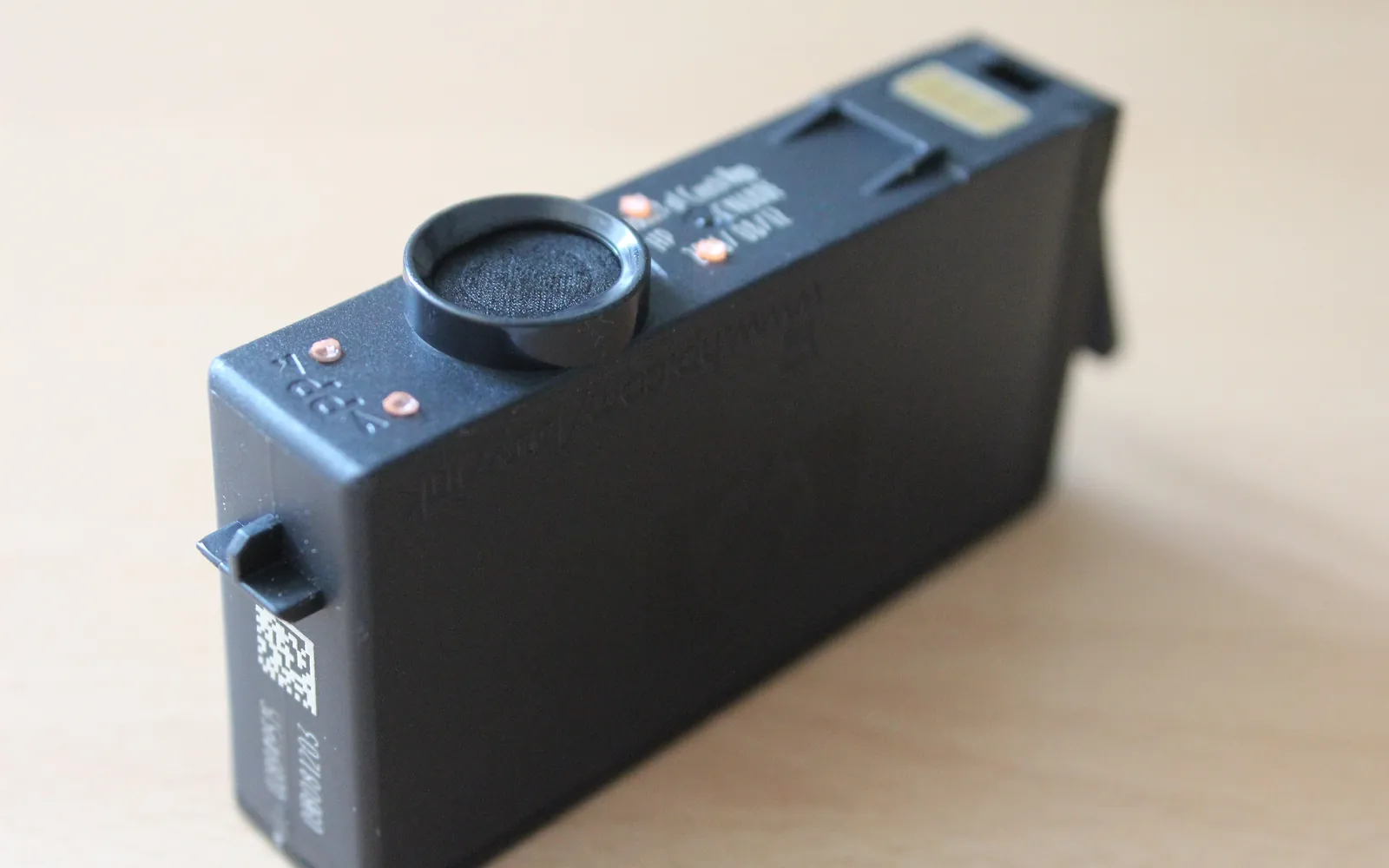
The photo at the top of this page shows the small metal contacts that connect a cartridge to the printer. Dried ink or dust on them can stop the printer firing the black nozzles even when the cartridge is full, and sometimes produces a cartridge error. Switch the printer off, remove the black cartridge, and wipe the contacts on the cartridge and in the carriage very gently with a lint-free cloth lightly dampened with distilled or tap water. Do not touch the nozzles. Let everything dry fully before reinstalling. If the printer then complains that the cartridge is missing or incompatible, follow printer cartridge not recognized.
3. Run head cleaning, then let it rest
Inkjet nozzles are tiny, and ink that dries in them blocks the flow. On many printers the black used for text is a thicker pigment ink, which tends to dry and block more readily than colour inks if the printer sits unused for weeks.
- Run Head cleaning (sometimes called Clean printhead or Nozzle cleaning) once.
- Print another nozzle check and compare.
- Repeat up to three times as long as each cycle improves the pattern.
- If the pattern stops improving, leave the printer switched on and idle for several hours or overnight, then print one more nozzle check.
Each cleaning cycle uses ink, so do not run them back to back without checking. Use a deep or powerful cleaning only once, and only if normal cleaning made a little progress.
4. Check the print settings
If the nozzle check prints black perfectly but your documents do not, the cause is a setting or the file.
- Windows 11: open Settings > Bluetooth & devices > Printers & scanners, select the printer and choose Printing preferences. Look for colour or grayscale options, an option to print black using colour inks, or an ink-saving or draft mode, and set them back to their standard values.
- macOS: in the print dialog, check the colour or black and white option and the printer-specific section for quality and paper type. In System Settings > Printers & Scanners you can confirm that the correct printer and driver are selected.
- Print a simple text document from a different program. If black prints there, the original file may use very dark grey or a colour that only looks black on screen.
If settings are missing or the printer is listed with a generic driver, a fresh driver often restores the full options; see printer driver is unavailable.
5. Align the print head
Black text that is present but blurry or doubled is an alignment issue rather than a missing-ink issue. Run Print head alignment from the maintenance menu after cleaning. It is also worth doing after replacing a print head.
Inkjet versus laser
| Printer type | Typical cause of missing black | What to try |
|---|---|---|
| Inkjet, head in the cartridge | Empty or dried cartridge, tape left on, dirty contacts | Replace or reseat the cartridge, clean contacts |
| Inkjet, head fixed in the printer | Clogged black nozzles after inactivity | Cleaning cycles, then rest; head service as last resort |
| Mono laser | Low toner, sealing strip left in a new cartridge, worn drum | Rock or replace the toner cartridge, check the drum |
| Colour laser | Black toner cartridge or black drum unit | Swap or replace the black cartridge; check its drum or imaging unit |
Laser printers do not have nozzles, so cleaning cycles do not apply. If black is faint, remove the toner cartridge, rock it gently side to side to spread the toner, and reinstall it. With a new cartridge, check that any sealing strip or packing clip has been removed. If the print quality page is still pale or patchy, the toner or the drum is at the end of its life. Lines or spots in the black areas are covered in printer printing lines or streaks.
Black prints, but text looks fuzzy or doubled
If black is printing but small text looks soft, doubled or slightly stepped, the black cartridge is probably fine and the print head is out of alignment. This is common after a cartridge change on printers where the head is part of the cartridge, and after the printer has been moved. Print a nozzle check first; if every line is complete, run the alignment routine from the printer’s maintenance menu or the maker’s app. Printer head alignment explains the three kinds of alignment (automatic, scan and manual) and what to do when the alignment fails. If the nozzle check shows gaps in black, go back to cleaning before you align, because alignment cannot correct missing nozzles.
When to replace a part, and when it is not worth it
- Black cartridge: replace it if the nozzle check stays blank after a new cartridge has been tested, contacts cleaned and two or three cleanings run. If the head is part of the cartridge, this also replaces the head.
- Separate print head: if a fresh cartridge, several cleanings and an overnight rest have not brought black back, the head may be permanently blocked. Some heads can be bought as parts, but compare the cost with a new printer before ordering, and confirm the part fits your exact model.
- Laser toner or drum: replace whichever part your model’s manual links to faint or missing black. On printers where the drum is built into the toner cartridge, one new cartridge covers both.
If the printer is old, prints rarely and needs a new head, a replacement printer is often the more sensible choice. If you print only occasionally, printing one page with some black on it every week or so helps keep the nozzles from drying out. If ink is reaching the page but smears, see printer smudging ink.
Frequently asked questions
Why is my printer printing colour but not black?
On an inkjet, the most common reasons are an empty or nearly empty black cartridge, protective tape left on a new cartridge, clogged black nozzles, or dirty cartridge contacts. Print a nozzle check from the maintenance menu: if the black part of the pattern is missing or broken, the problem is in the cartridge or print head, not in your computer.
My new black cartridge still does not print. What now?
Remove it and check that every piece of tape and plastic has been removed, especially over the nozzles and the air vent. Reseat it firmly until it clicks, then run one or two cleaning cycles so the ink can reach the nozzles. If the printer reports an error about the cartridge, see the guide on a cartridge that is not recognized.
Why does black print as dark brown or green?
The printer is building black from cyan, magenta and yellow instead of using the black cartridge. This happens when the black nozzles are blocked, when a setting such as grayscale or black-only is set incorrectly, or on some photo modes. Fix the black nozzles first, then check the colour options in the print dialog.
How long should I let the printer rest after cleaning?
If two or three cleaning cycles have not improved the nozzle check, leave the printer switched on and idle for several hours or overnight, then print another nozzle check. This gives the ink time to soften dried deposits without using more ink.
Is it worth replacing the print head?
If the head is built into the cartridge, a new cartridge replaces it. If the head is a separate part of the printer, compare the part price with the price of a new printer of similar quality before ordering, and check that the part matches your exact model.
Sources
Editorial team
The Fix a Printer team writes and updates independent printer troubleshooting guides, checking Windows and macOS steps against Microsoft and Apple documentation.