Print quality
Printer printing blank pages: causes and fixes
Written by Fix a Printer Editorial Team · Updated
A printer printing blank pages is moving paper, so the mechanics work; what is missing is ink or toner on the page. The cause can be as simple as a strip of tape on a new cartridge or as stubborn as a print head that has dried out after weeks without use. Work through the steps below in order. Most blank-page problems are solved in the first three.
If text prints but pictures and logos are missing, see printer not printing images. For pages that are not blank but have lines, bands or faded areas, go to printer printing lines or streaks. For a full list of problems by symptom, see the printer troubleshooting guide.
Step 1: Find out whether it is the printer or the computer
Print a test page from the printer itself. Most printers have this in the control panel menu under Reports, Maintenance, Tools or Settings; on printers without a screen, the manual lists a button combination.
- The printer’s own page is also blank: the problem is in the printer, its ink or toner. Continue with step 2.
- The printer’s own page is fine: the printer is healthy. Skip to step 6 to check the document and the computer.
Step 2: Check new cartridges for tape and seals
This catches a lot of people after replacing a cartridge.
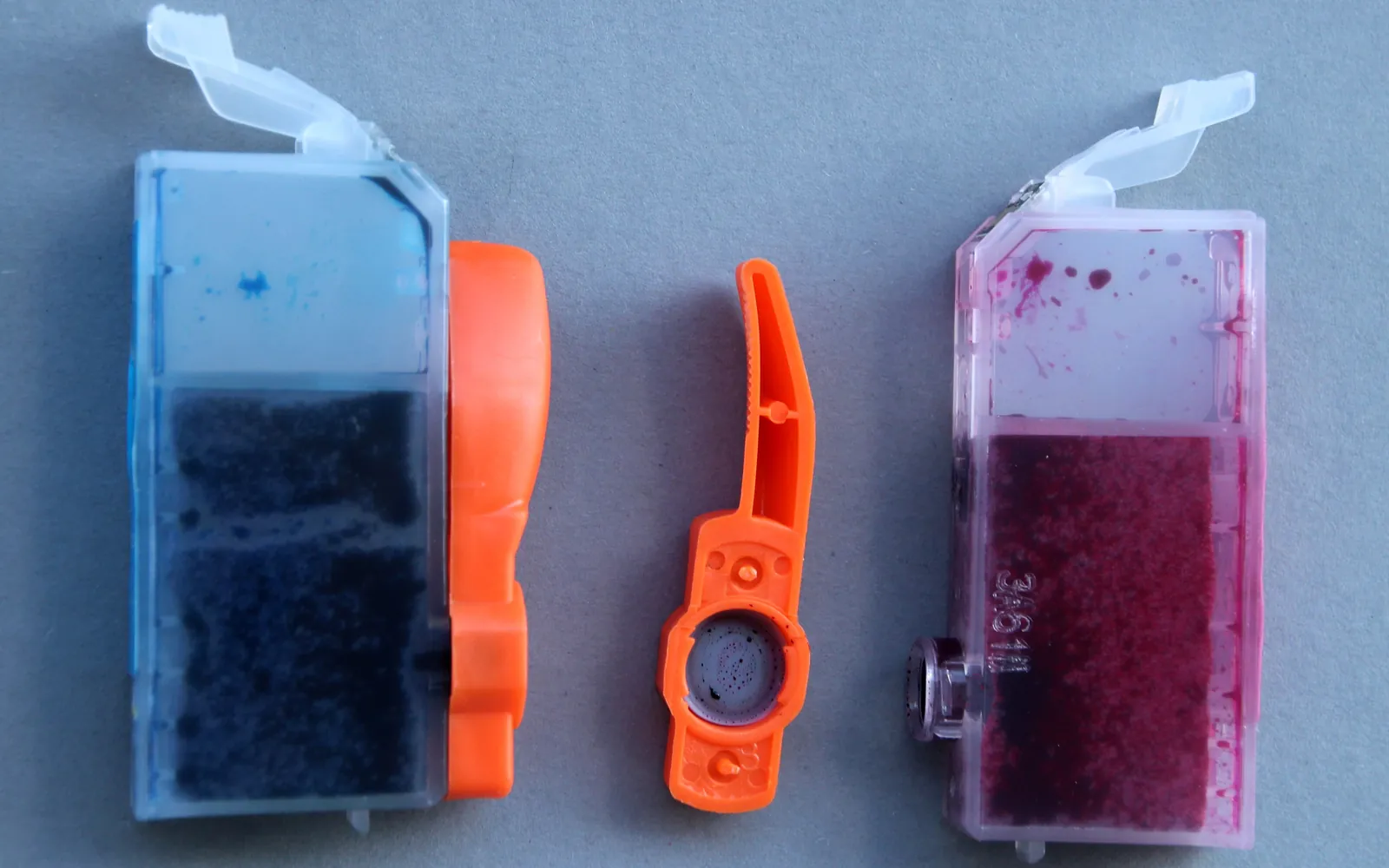
- Inkjet cartridges usually come with a coloured plastic tape over the nozzles or the air vent, and sometimes an orange clip. Remove the cartridge, peel off every piece of tape and clip, and avoid touching the nozzles or the copper contacts.
- Laser toner cartridges often have a long plastic sealing strip that you pull out of the side before installing. If it is still there, no toner can reach the drum, and every page comes out blank.
- Ink tank printers need the ink to have been primed into the lines during setup. If the tanks are full but the first prints are blank, follow the initial ink charging step in the manual.
Step 3: Check ink or toner levels and seating
- Check the levels on the printer’s display or in the printer software. A reading is an estimate, so an almost-empty cartridge may already be dry.
- Remove and reinstall each cartridge until it clicks into place. A cartridge that is not fully seated is not used.
- If the printer says a cartridge is not recognised, see printer cartridge not recognized.
If only one colour is missing, the problem is that colour’s cartridge or nozzles. If everything is missing on an inkjet, suspect the black cartridge and the print head together. When colour prints but black text never appears, our guide to a printer not printing black covers that specific case, including the black-only and plain-paper settings that trip people up.
Step 4: Clean the print head (inkjets)
Inkjet nozzles are tiny, and ink dries in them if the printer sits unused. That produces blank or partly blank pages even with full cartridges.
- From the printer menu or the printer software on your computer, run Nozzle check (sometimes called print quality report). It prints a pattern for each colour.
- If lines are missing, run Head cleaning once.
- Print the nozzle check again. If it improved, run one or two more cleanings.
- If nothing changes after three cycles, stop. Each cleaning uses ink. Leave the printer switched on (so it can maintain itself) for several hours or overnight and try again.
Some printers have a “deep” or “power” cleaning that uses much more ink; use it only when the normal cleaning helps a little but not enough. If the head is still blocked after resting, the cartridge (on printers where the head is part of the cartridge) or the print head may need replacing.
Step 5: Laser printer checks
On a laser printer, a blank page with a full cartridge usually means the image never reached the drum.
- Make sure the sealing strip is out (step 2).
- Remove the toner cartridge and, if separate, the drum unit, and reinstall them firmly. Gently rocking a toner cartridge side to side before reinstalling spreads the toner evenly.
- Close every door fully; some printers will not print with a cover slightly open.
- If pages remain blank with a new genuine or known-good cartridge, the drum unit or the high-voltage parts may be faulty. That is a repair job.
Step 6: Check the document and the computer
If the printer’s own test page prints correctly, the blank pages come from the computer side.
- Page range: documents sometimes end with empty pages, or a section break creates one. Check print preview.
- Paper size: if the document is set to a paper size larger than the paper in the tray, the content may fall outside the printable area. Match the size in the print dialog to the paper in the tray.
- Colour settings: printing with only the colour cartridges selected, or a “grayscale with colour ink only” setting, can produce blank output when that ink is empty.
- PDFs and web pages: try printing a simple text document. If that works, the problem is in the specific file or app; try “print as image” in the PDF reader’s advanced options. Our guide to a printer that won’t print PDF goes through the PDF-specific causes.
- Driver: if every app prints blank, reinstall the driver as described in printer driver is unavailable.
Not quite blank: pale, partial or wrong-colour pages
Blank pages are the extreme end of a range of ink delivery problems. If the page is not completely empty, the symptom points to a more specific guide:
- Everything prints, but very light: low ink or toner, an economy or draft setting, or partly blocked nozzles. See printer printing faded.
- Text or images appear in the wrong colours: one colour is missing or a colour profile is wrong, so the printer mixes the others. See printer printing wrong colors.
- Gaps, lines or bands through the print: some nozzles fire and others do not. See printer printing lines or streaks.
- Only the top part of each page prints, or the page is cut off: usually a paper size mismatch between the document, the driver and the tray, or a large job the printer ran out of memory for. Match the paper size and try printing fewer pages at once.
Prevent blank pages
- Print at least one page a week on an inkjet to keep the nozzles wet.
- Turn the printer off with its own power button, not at the wall, so the head parks and caps properly.
- Store spare cartridges sealed, and install them before their use-by date if the packaging shows one.
If you also get paper errors while testing, see paper jam but no paper.
Frequently asked questions
Why is my printer printing blank pages when it has ink?
The ink may not be reaching the paper: the nozzles can be dried and blocked, an air bubble may be in the line, a protective tape may still cover the cartridge outlet, or the cartridge contacts may be dirty so the printer does not fire that colour.
How many times should I run a print head cleaning?
Run one cleaning, then print a nozzle check. If it improves, repeat once or twice. If nothing changes after three cycles, stop, because each cycle uses ink, and let the printer rest for a few hours before trying again.
Why does my laser printer print blank pages?
The most common reasons are a new toner cartridge with its sealing strip still in place, a cartridge not fully seated, an empty cartridge, or a drum unit that is not installed correctly.
Can the computer cause blank pages?
Yes. An empty page at the end of a document, a print range that includes blank pages, a wrong paper size or a faulty driver can all produce blank sheets while the printer itself is fine.
Sources
Editorial team
The Fix a Printer team writes and updates independent printer troubleshooting guides, checking Windows and macOS steps against Microsoft and Apple documentation.