Print quality
Laser printer printing all-black pages: how to find the cause
Written by Fix a Printer Editorial Team · Updated

A laser printer printing black pages, solid black from edge to edge or nearly so, looks dramatic but has a short list of causes. Either the job really is dark (a document or copy problem), or something inside the printer has stopped controlling where the toner goes. This guide separates the two in a couple of minutes and then works through the parts you can check yourself.
For pages that are pale rather than dark, see printer printing faded. For an even grey haze over the whole page, see laser printer grey background. For streaks or repeating marks, see printer printing lines or streaks and laser printer ghosting.
Why a laser printer can print black
In a laser printer, the drum is given an even electrical charge. A laser then draws the page by changing the charge where text and images should be, and toner sticks only to those areas before being transferred to the paper and fused with heat. If the drum is not charged properly, or the laser lights the whole drum, toner sticks everywhere and the result is a black page.
So a black page points to the drum, the parts that charge it, their electrical contacts, or the laser unit. But before opening anything, rule out the job itself.
Step 1: Rule out the document
Some documents are meant to be black, or nearly black, without you realising.
- Dark mode web pages and apps. A page shown in dark mode may print with a black background. Use the browser’s print preview and turn off Background graphics, or switch the site to a light theme.
- Inverted colours. Some PDF readers and accessibility settings show or print documents with inverted colours. Check the reader’s display and print options.
- Dark scans. A scanned page made with the lid open or a very dark setting is mostly black. Look at the image on screen.
- Slides and designs with dark backgrounds. Presentation themes often have dark backgrounds that print as solid black pages. Many presentation apps have a print option for grayscale or pure black and white that drops the background.
Print a plain text page from Notepad or TextEdit. If it prints normally, the problem was the document.
Step 2: Print the printer’s own test page
From the printer’s menu, print a configuration, status or test page. This is generated inside the printer.
- The test page is normal: the printer is fine; look at the job, the app or the driver.
- The test page is black: the fault is inside the printer. Go to Step 3.
Copies black, prints fine
If prints from the computer are normal but copies are black, the scanner side is the problem:
- Place the original face down on the glass and close the lid.
- Make sure the copy darkness or density setting is not at maximum.
- If copies from the glass and from the document feeder are both black, the scanner lamp or its connection may have failed. That needs service.
Step 3: Reseat the toner and drum
- Switch the printer off and wait for it to cool; the fuser area gets very hot.
- Open the front cover and remove the toner cartridge, and the drum unit if your printer has a separate one.
- Remove any packing tape, plastic covers or seals still attached. Compare with the instructions that came with the cartridge.
- If the toner sits in a drum unit, separate them and click them back together firmly.
- Reinstall, making sure each part locks in, and close every cover fully.
A cartridge or drum that is not seated may not make electrical contact, and without contact the drum is not charged.
Step 4: Clean the electrical contacts
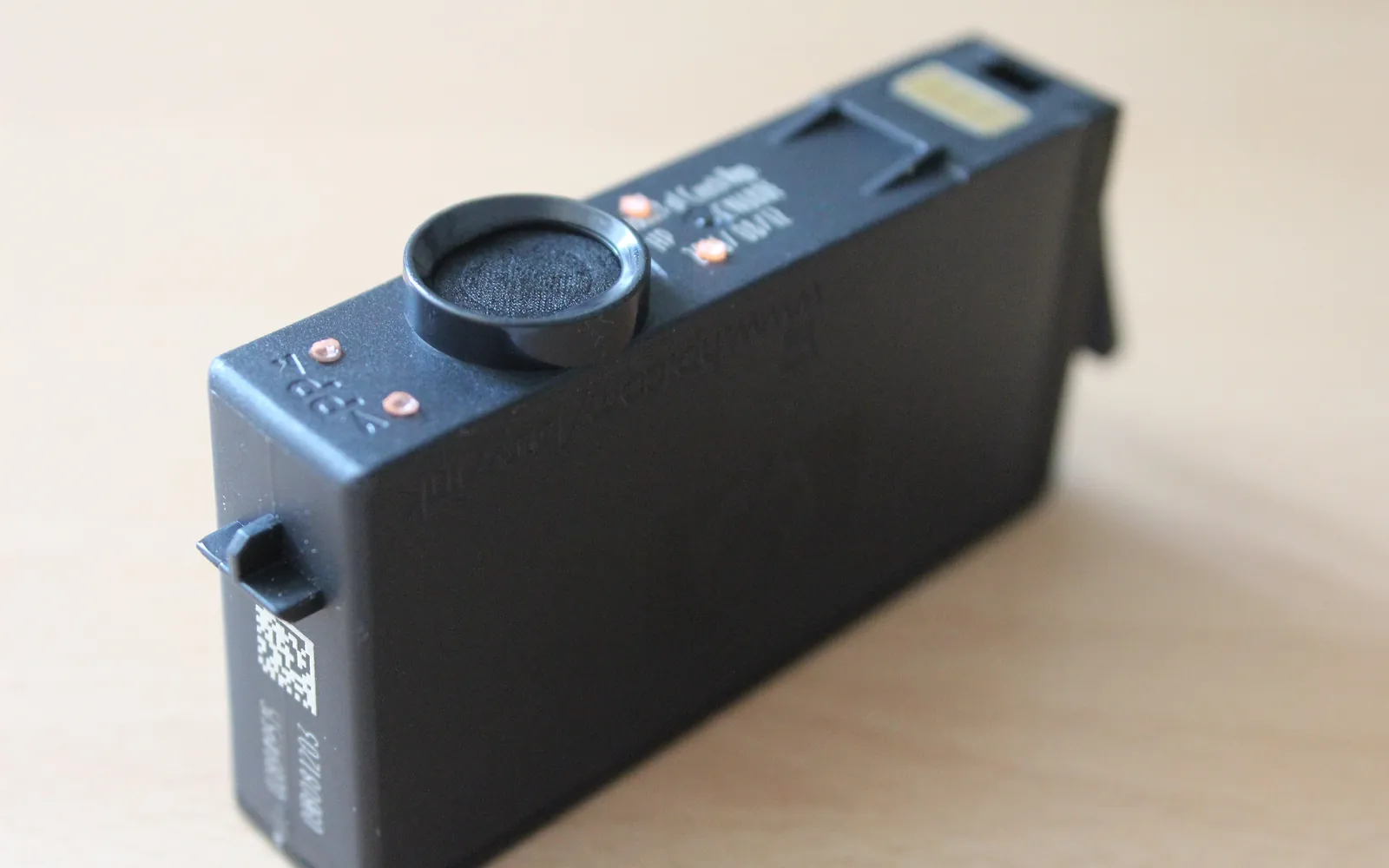
Toner cartridges and drum units have small metal contacts that carry the charging voltage. Toner dust or a bent contact breaks that connection.
- Wipe the contacts on the cartridge and drum unit gently with a dry lint-free cloth.
- Look at the matching contacts inside the printer with a torch. If they are dirty, wipe them carefully with a dry cotton bud, with the printer unplugged. Do not bend them.
- Do not touch the drum surface itself (usually a green, blue or grey cylinder); fingerprints and scratches damage it.
Some printers with separate drum units have a small sliding tab to clean the corona wire; if yours does, slide it gently from end to end a few times and return it to its home position. Your user guide shows whether your model has one.
Step 5: Swap in a known good part
If you have the previous toner cartridge or drum unit, try it.
- Black pages stop with the old part: the new part is faulty. Contact the seller with the box and receipt.
- Black pages stop with a new part: the old part had failed.
- Black pages continue with any part: the fault is in the printer.
The cartridge may also be refused rather than printing black; in that case see cartridge not recognized. If a new toner gives a low toner message, see toner low after a new cartridge.
Step 6: When it is a repair
If good supplies still give black pages, the high voltage power supply that charges the drum, its wiring, or the laser scanner unit has probably failed. These are inside the printer, involve high voltage and need the maker’s service or a repair shop. Ask for a quote and compare it with the value of the printer before deciding.
Stop printing black test pages while you wait: they use a lot of toner and can push excess toner into the fuser, which leads to smearing and jams.
Quick checklist
- Document checked for dark backgrounds, inverted colours and dark scans.
- Printer test page tells job from printer; copies tested separately.
- Toner and drum reseated, packing removed, covers closed.
- Contacts clean and straight; drum surface not touched.
- Known good part tried before calling for repair.
Frequently asked questions
Why is my laser printer printing completely black pages?
In a laser printer, the drum is charged so that toner only sticks where the laser has drawn the image. If the drum is not charged, toner sticks everywhere and the page comes out black. A faulty or badly seated drum or toner cartridge, dirty contacts or a fault in the charging or laser parts can cause that.
Why do my copies come out black but prints are fine?
When prints from the computer are normal but copies are black, the scanner is not lighting or reading the original. The lid may have been open with a dark room behind it, the scanner lamp may have failed, or the original may be face up. Make a copy with the lid closed and the original face down first.
Can a new toner cartridge cause black pages?
Yes. A cartridge with a manufacturing fault, packing material left on it, or one that is not fully seated can print black or very dark pages. Reseat it, remove all packing and, if you have the old cartridge, try it to compare.
Is it safe to keep printing black pages?
Printing full black pages uses a lot of toner and can overload the fuser with toner, which can lead to jams and smearing. Stop printing after a test page or two while you diagnose.
Sources
Editorial team
The Fix a Printer team writes and updates independent printer troubleshooting guides, checking Windows and macOS steps against Microsoft and Apple documentation.