Print quality
Printer ink dried out: how to revive an inkjet after it sat unused
Written by Fix a Printer Editorial Team · Updated
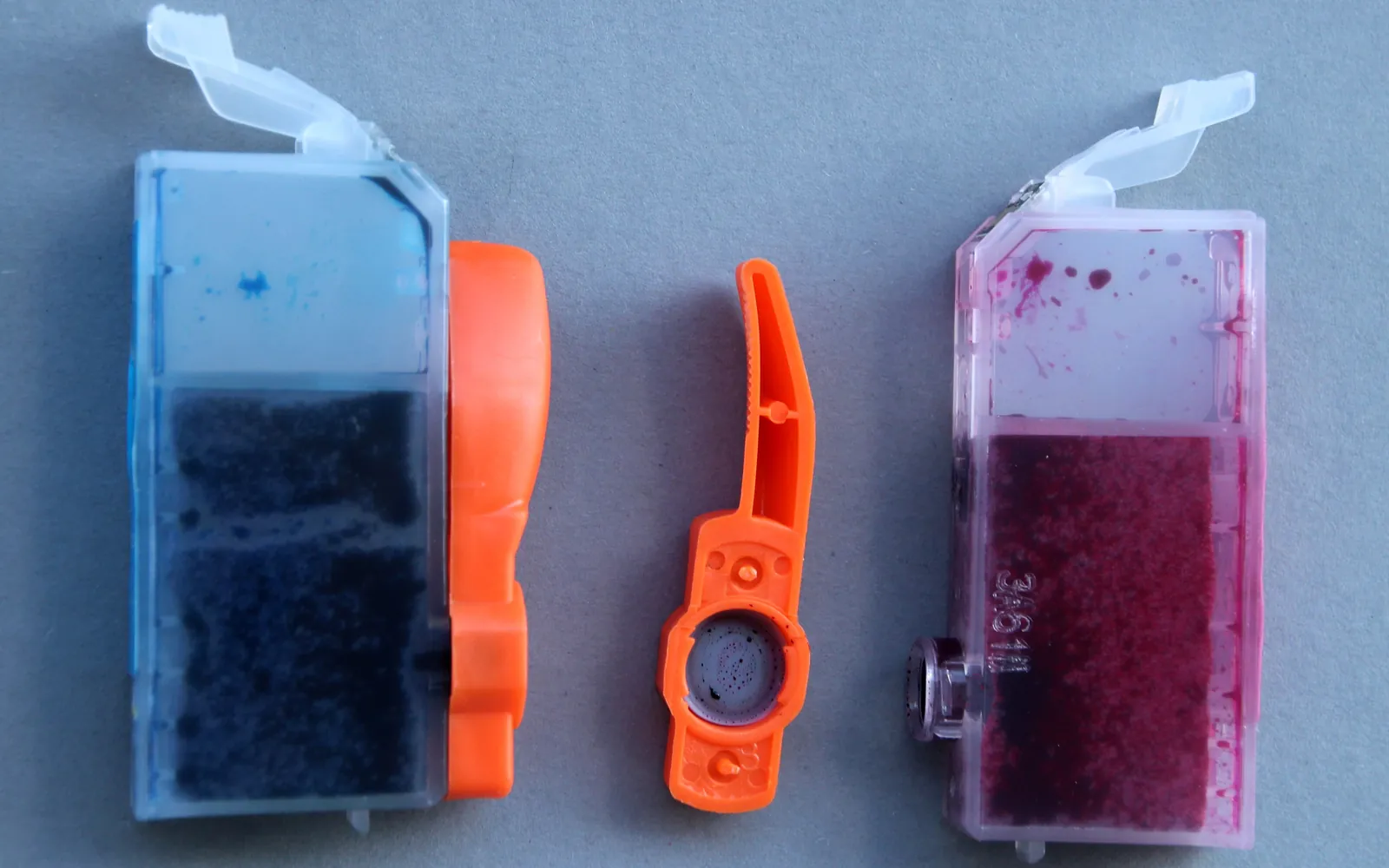
Printer ink dried out is the classic problem of an inkjet that has not been used for a few weeks or months. Inkjet printers push tiny drops of ink through very fine nozzles. When the printer sits idle, ink at the nozzle openings can thicken or dry and block them. The result is streaks, missing colors, faint text or completely blank pages, even though the cartridges show plenty of ink.
The fix is usually patience rather than force: a nozzle check, a cleaning cycle, and time for the ink to work through. This guide shows a sequence that clears most clogs without wasting a cartridge’s worth of ink.
If your printer is a laser printer, dried ink does not apply; faded or patchy laser prints are covered in printer printing faded.
Signs that ink has dried in the nozzles
- Horizontal gaps or bands across the page, often in one color. See printer printing lines or streaks for how to read them.
- One color missing or wrong, so photos look green, pink or blue. Printer printing wrong colors explains color casts.
- Black text faint or missing while color works, described in printer not printing black.
- Completely blank pages after a long break, covered in printer printing blank pages.
Step 1: Print a nozzle check
Open the maintenance or tools menu on the printer’s display, or the maintenance section of the maker’s app or driver, and print a nozzle check (sometimes called a print quality report or diagnostic page). It prints a grid or block for each color.
- All patterns complete: the nozzles are clear. The problem is a setting, the paper or a driver. Check the paper type and print quality in the print dialog.
- Gaps in one or more colors: the nozzles for those colors are blocked. Continue.
- One color completely missing: check the cartridge is seated, that its protective tape is removed and that it has ink before cleaning.
Step 2: Run one head cleaning, then check again
From the same menu, run Head cleaning (or Clean print head, Cleaning). The printer forces ink through the nozzles to clear them. When it finishes, print a nozzle check again.
- If the pattern is better but not perfect, run one more cleaning and check again.
- If the pattern is the same after two cleanings, stop. Go to Step 3.
Some printers offer a deep cleaning or powerful cleaning option. It uses much more ink. Use it only after normal cleanings, and only once.
Every cleaning cycle sends ink to a waste ink pad or tank inside the printer. That pad has a limited capacity, and when a printer decides it is full, it stops working until the pad is serviced or replaced. That is the main reason not to run cleaning after cleaning in a row.
Step 3: Give the ink time
Cleaning loosens dried ink but does not always clear it at once. Leave the printer switched on and idle for several hours, or overnight, then print a nozzle check. Many patterns that looked hopeless after three cleanings recover after a rest. Then run one more cleaning if needed.
Step 4: Gently clean a cartridge with a built-in head
Some inkjet cartridges include the print head itself; you can see a small metal or plastic plate with the nozzles on the underside, next to a strip of copper contacts. If yours are like that:
- Remove the cartridge as the printer’s guide describes.
- Dampen a lint-free cloth with water (distilled if you have it) and squeeze it so it is barely wet.
- Hold the cloth against the nozzle plate for a few seconds, then lift it away. Do not rub hard.
- Do not touch or wet the copper contacts. If they get damp, let them dry fully.
- Reinstall the cartridge and print a nozzle check.
On printers with a fixed print head (separate ink cartridges or ink tanks with a head built into the printer), do not take the head out or flush it unless the maker’s guide for your model tells you how. Those heads are expensive, and damage is easy.
Step 5: Decide when to replace
- Cartridge with a built-in head: if it still fails after the steps above, a new cartridge brings a new head and usually ends the problem.
- Old or expired cartridges: ink cartridges carry a date on the box or the cartridge. A very old cartridge may never print well again.
- Fixed print head that will not recover: the options are service, a replacement head where the maker sells one, or a decision about whether the printer is worth repairing.
How to stop ink drying out again
- Switch off with the power button. Many inkjets move the head to a capping station when switched off properly. Cutting power at the wall can leave the head uncapped.
- Print regularly. A page with some color every week or two keeps ink moving through the nozzles. Many users simply print a nozzle check now and then.
- Keep cartridges in the printer. Do not leave a cartridge out of the printer or out of its packaging for long.
- Store sensibly. Avoid hot, dry spots such as next to a radiator or in direct sun.
- Consider the right printer. If you print only a few pages a year, a laser printer avoids the problem entirely, because toner is a dry powder.
Cleaning cycles fill the waste ink pad
Every head cleaning pushes ink through the nozzles and into a waste ink pad or maintenance box inside the printer. A few cycles do no harm, but running cleaning again and again on a badly dried head sends a lot of ink there. On printers with a built-in pad, that can bring forward the message that the ink pad is at the end of its service life, which usually means a service visit. That is one more reason to follow the routine above: one cleaning, a nozzle check, a rest, and only then another cleaning. If your printer already shows an ink pad or maintenance box message, read printer ink pad full before you run any more cleaning cycles.
Summary
Nozzle check, one cleaning, check again, rest, then clean once more. Wipe a cartridge head gently if it has one. Most dried-ink problems clear with that sequence, and the rest point to a new cartridge or service.
Frequently asked questions
Can dried printer ink be fixed?
Often, yes. A nozzle check followed by one or two head cleanings, with rest time in between, clears most partial clogs. If the print head is part of the cartridge, a new cartridge also brings a new head. Severe clogs on printers with a fixed print head may need service or a head replacement.
How many head cleanings should I run?
Run one cleaning, print a nozzle check, and repeat once or twice if it improves. If several cleanings make no difference, stop and let the printer rest for some hours before trying again. Each cleaning uses ink and adds to the waste ink pad, which is not unlimited.
How long can an inkjet printer sit without being used?
There is no single answer; it depends on the printer, the ink and the room. Many users find that printing a page every week or two keeps nozzles clear. Your printer's user guide may give a recommendation for your model.
Does unplugging the printer cause dried ink?
It can. Many inkjets park and cap the print head when you switch them off with the power button. Cutting power at the wall or power strip while the printer is on can leave the head uncapped, which lets the nozzles dry.
Can I soak the print head in water or cleaner?
Do not soak a print head or a cartridge unless the maker's instructions for your model say so. Liquid can reach electrical contacts and damage the head. Gentle wiping of the nozzle plate on cartridges with a built-in head is the safe limit for most users.
Sources
Editorial team
The Fix a Printer team writes and updates independent printer troubleshooting guides, checking Windows and macOS steps against Microsoft and Apple documentation.