Print quality
Printer printing too small: how to get your pages back to full size
Written by Fix a Printer Editorial Team · Updated
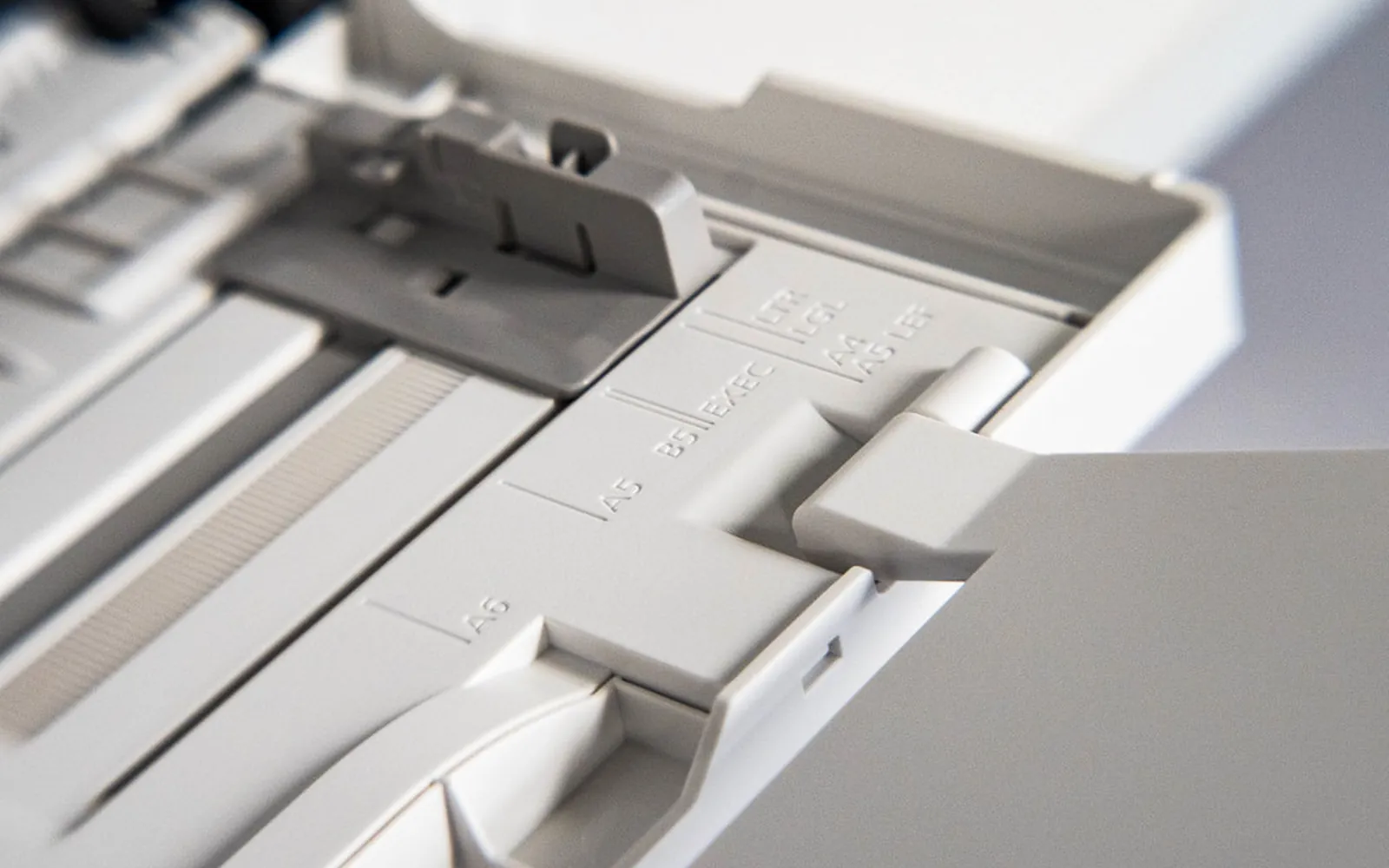
A printer printing too small, with text that looks like a reduced photocopy or a page that sits in one corner of the sheet, is not a printer fault. Printers do not shrink pages on their own; something in the print settings tells them to. The usual suspects are a scaling option, a pages-per-sheet layout, a paper size mismatch or the app’s own zoom. This guide checks them in the order that finds the cause quickest.
The opposite problem, where content is lost at the edges, is covered in printer cutting off edges. If the page is full size but one half is missing, see printer printing half a page.
First: how small, and where?
Look at a printed page and compare it with the screen.
- Everything is smaller, centred, with wide margins all round: scaling or a paper size mismatch (Steps 1 and 3).
- Two, four or more pages on one sheet: pages per sheet is set (Step 2).
- The page sits in a top corner: usually a paper size mismatch in the driver, or a layout option (Steps 2 and 3).
- Only copies are small, not prints: the printer’s copy settings (Step 6).
- Only one app prints small: that app’s own scale option (Step 4).
Step 1: Set scaling to 100%
Open the print dialog and look for Scale, Scaling, Page sizing, Fit or Zoom.
- Windows and Office apps: set scaling to No scaling, Actual size or 100%. Options like Scale to paper size or Fit to page shrink a page that is larger than the paper.
- Mac apps: choose Show Details and set Scale to 100%. In Preview, choose Scale: 100% instead of Scale to Fit.
- Driver options: in Printer properties or Preferences, look for a Reduce/Enlarge, Zoom or Fit to page setting and set it to 100%.
Print again. If the page is now full size, you are done.
Step 2: Set one page per sheet
A pages-per-sheet setting (also called N-up, multiple pages, or layout) prints two, four or more pages reduced onto one sheet. It is easy to select by accident and some apps remember it.
- In Windows, look for Pages per sheet in the print dialog or on the Layout tab of Printing preferences.
- On a Mac, open the Layout section of the print dialog and set Pages per Sheet to 1.
- Also turn off Booklet, Poster and Handout layouts unless you want them.
If it keeps coming back, it is saved as a default: fix it in Printing preferences in Windows, or save a clean preset on a Mac.
Step 3: Match the paper size
If the document is laid out for a larger paper size than the one in the printer, the driver shrinks it to fit, which leaves wide margins. If the driver thinks the paper is larger than it really is, the page can land in one corner.
- Check the paper size in the document’s page setup (A4, Letter, Legal and so on).
- Choose the same size in the print dialog.
- Check the tray’s paper size setting on the printer, especially after someone loaded a different paper.
A document made for A3 or Tabloid has to be reduced to print on A4 or Letter; that is expected. Wikipedia’s paper size article shows how the common sizes compare.
Step 4: Check the app’s own zoom and scale
Some apps ignore the driver and scale pages themselves.
- Web browsers: in the print dialog, open More settings and set Scale to Default or 100. If the browser window itself is zoomed out (Ctrl and minus), some sites print smaller; reset zoom with Ctrl+0 (Cmd+0 on a Mac). A browser option to Fit to page width can also shrink wide pages.
- PDF readers: choose Actual size in the page sizing options. Fit or Shrink oversized pages reduces pages that are larger than the paper. If the PDF itself has wide built-in margins, it will look small even at 100%; check the page size in the reader’s document properties. Printer won’t print PDF covers other PDF printing quirks.
- Spreadsheets: a Fit sheet on one page or Fit all columns option shrinks large sheets until the text is tiny. Use No scaling or fit only the columns, and let rows run onto more pages.
- Photo apps: a photo printed at a set size (for example 10 x 15 cm or 4 x 6 inches) will not fill a larger sheet. Choose Fill or Full page if that is what you want.
Step 5: Check the driver defaults
If every job from every app comes out small, a reduced setting is probably saved in the driver.
- Open Settings > Bluetooth & devices > Printers & scanners, select the printer and choose Printing preferences.
- Look on the Layout, Page setup, Effects or Advanced tabs for Reduce/Enlarge, Zoom, Fit to page or Pages per sheet.
- Set them to 100% and one page per sheet, then choose Apply.
- Check Printer properties > Advanced > Printing Defaults as well on drivers that show it.
If the problem started after a driver change, or a second copy of the printer appeared, see printer not showing up in Windows 11 for tidying up duplicate entries.
Step 6: Small copies
When copies made on the printer come out smaller than the original but printing from a computer is fine, the printer’s copy settings are reduced.
- On the copy screen, set Reduce/Enlarge or Zoom to 100%.
- Turn off Fit to page or Auto fit for copies if the original is already the same size as the paper.
- Check that the original is placed against the correct corner mark on the glass, so the scanner does not detect it as a smaller size.
Many printers return to their default copy settings after a minute or two; if the default itself is reduced, change it in the copy settings menu.
Quick checklist
- Scale 100% or Actual size, not Fit or a reduced percentage.
- One page per sheet; no booklet, poster or N-up layout.
- Same paper size in document, dialog and tray.
- Browser zoom and scale reset; PDF reader at Actual size.
- Driver defaults at 100%.
- Copy Reduce/Enlarge at 100%.
Frequently asked questions
Why is my printer printing everything smaller?
Usually a scaling option is set below 100%, two or more pages per sheet are selected, or the document is laid out for a bigger paper size than the paper in the printer, so the driver shrinks it to fit. Check the print dialog, the driver's Printing preferences and the document's page setup.
How do I print at actual size?
In the print dialog, set the scale to 100%, Actual size or None rather than Fit or Shrink, and make sure the paper size matches the document. In PDF readers, choose Actual size; in browsers, set Scale to 100 or Default.
Why is my PDF printing small?
The PDF page may be larger than your paper, or the reader is set to Fit or Shrink oversized pages, or the PDF has wide white margins built in. Choose Actual size if the page fits, or Fit if it does not, and check the page size in the PDF's document properties.
Why does my print only fill a corner of the page?
The job is set to print several pages per sheet, a booklet or N-up layout, or the paper size in the driver is larger than the document. Reset layout to one page per sheet and choose the same paper size as the document.
Sources
Editorial team
The Fix a Printer team writes and updates independent printer troubleshooting guides, checking Windows and macOS steps against Microsoft and Apple documentation.