Print quality
Printer cutting off edges: how to fix text and images missing at the margins
Written by Fix a Printer Editorial Team · Updated
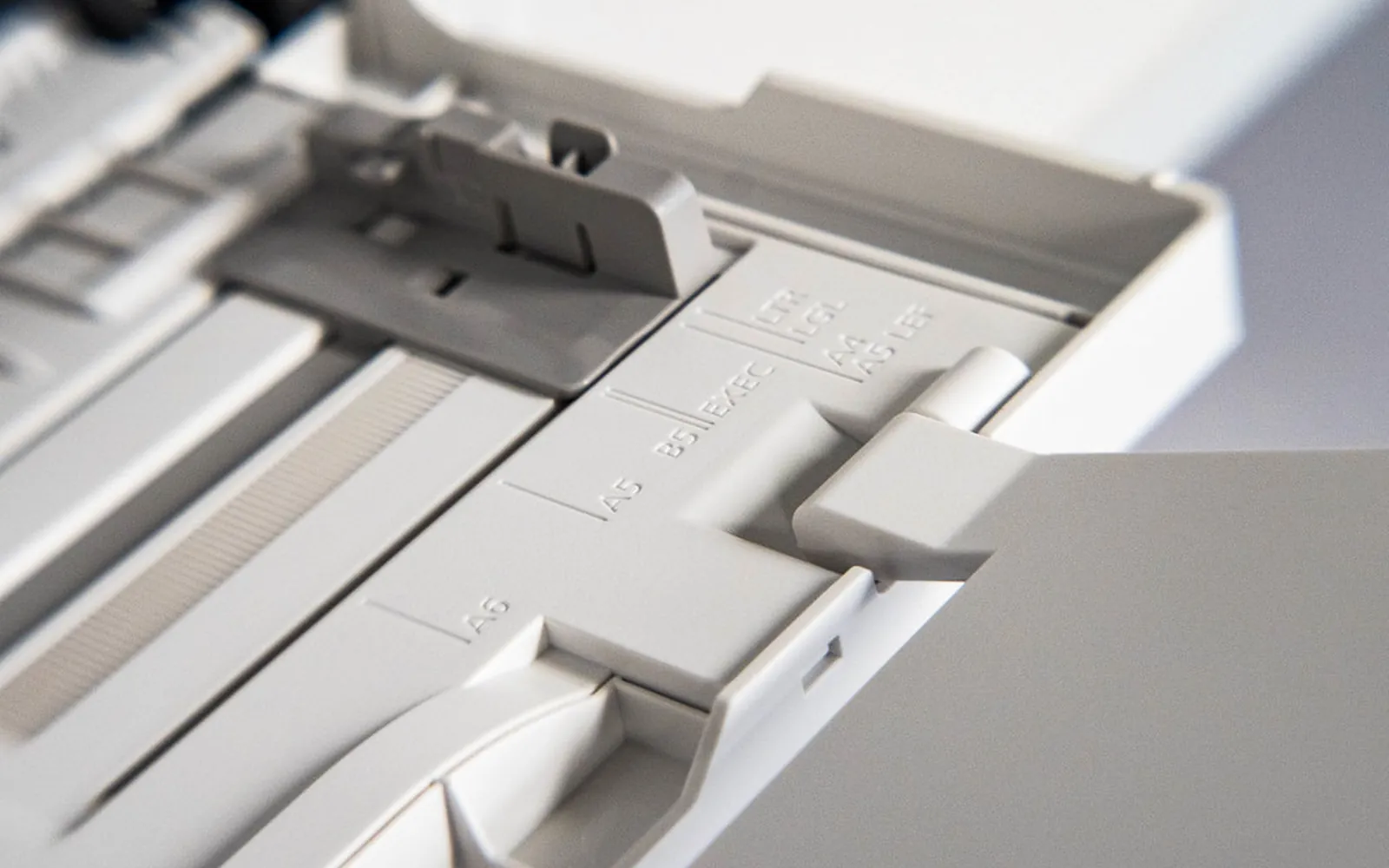
A printer cutting off edges of the page is almost never a broken printer. In most cases the computer is preparing a page of one size while the printer holds paper of another, or the document places text in the strip near the edge that the printer cannot reach. The fix is usually a setting or two. This guide shows how to tell which situation you have and how to get the whole page onto the sheet.
If the page is complete but pale, read printer printing faded. If the output is full of random symbols rather than clipped, see printer printing gibberish. The full symptom list is in the printer troubleshooting guide.
If the printer stops with a paper size message instead of printing, see printer paper size mismatch error. If the whole page is rotated or one margin is wider at the top than the bottom, the paper is feeding at an angle; see printer printing skewed. If only the top part of the page prints and then stops, see printer printing half page.
Read the clipped page first
How the content is cut off tells you where to look.
| What you see | Most likely cause | Where to start |
|---|---|---|
| Bottom of the page missing | A4 document printed on US Letter paper | Paper size |
| Right side missing | Letter document on A4, or a wide page printed at actual size | Paper size, scaling |
| A thin strip missing on every side | Content placed in the printer’s unprintable margin | Document margins |
| Only one file or one website is clipped | App or page settings | Print dialog of that app |
| The cut edge is slanted or moves between pages | Paper feeding crooked | Tray guides and rollers |
| Spreadsheet columns on extra pages or missing | Print area or scaling in the spreadsheet | Page layout in the app |
Step 1: Print a test page from the printer itself
Use the control panel or maintenance menu to print a configuration, status or test page. It is generated inside the printer, so your document and the driver play no part. If that page prints with all its edges intact, the printer is fine and the problem is in the size or scaling settings. If the test page is also clipped or slanted, go to Step 5.
Step 2: Match the paper size in three places
Two paper sizes dominate home and office printing. A4 (210 x 297 mm) is used in most of the world; US Letter (8.5 x 11 inches, about 216 x 279 mm) is standard in the United States and Canada. Letter is slightly wider and noticeably shorter than A4. A document set up for A4 and printed on Letter loses part of the bottom; a Letter document printed on A4 can lose part of the right side.
The size has to agree in three places:
- The document. In the app’s page setup or layout settings, choose the paper you actually use.
- The print dialog or driver. In Windows, check the paper size in the print dialog and in Printing preferences (Settings > Bluetooth & devices > Printers & scanners > your printer). On a Mac, check Paper Size in the print dialog.
- The printer’s tray setting. Many printers store the paper size loaded in each tray. If it says A4 while the tray holds Letter, the printer may scale, clip or show a size mismatch message.
Computers and printers bought in another country, or set up with another region, often default to the other size. Changing the default paper size in Printing preferences stops it from coming back.
Step 3: Check scaling in PDFs and browsers
PDF files and web pages carry their own page size, which does not always match your paper. When the print dialog is set to Actual size or 100%, a page that is bigger than the sheet gets clipped.
- In PDF viewers, choose Fit, Fit to printable area or Shrink oversized pages.
- In web browsers, set the scale to Fit to page width or Default and check the margins option in the print preview.
- On a Mac, use the Scale or Scale to fit option in the print dialog; the preview on the left shows the result before you print.
Always look at the print preview. If the preview is already clipped, the printer is only doing what it was told. If PDFs fail to print altogether rather than clipping, see printer won’t print PDF.
Step 4: Keep content inside the printable area
Unless a printer supports borderless printing, it cannot print right up to the edge of the sheet. It needs a small margin, usually a few millimetres, so the paper can be gripped and moved. The exact figure depends on the model and is in its specifications or user guide.
- If a word processor warns that margins are outside the printable area, accept its offer to fix them or increase the margins yourself.
- Designs with coloured backgrounds or images running to the edge need borderless printing. Many inkjet printers offer it for photo paper and certain sizes only; you turn it on in the print dialog or driver. Laser printers commonly do not offer it at all.
- In spreadsheets, set the print area and use the scaling option to fit all columns on one page wide, then check the preview.
Step 5: Fix paper that feeds crooked or shifted
If the test page from Step 1 is clipped, or the cut-off edge is slanted and changes from page to page, the paper is not travelling straight.
- Tray guides. Slide the side and rear guides until they touch the stack lightly. Loose guides let the sheet twist as it is picked up; guides squeezed too tight make the paper buckle.
- Paper condition. Curled, damp or creased paper does not feed straight. Use sheets from a fresh ream and do not overfill the tray.
- Rollers. Dusty or glazed pickup rollers grip one side better than the other. Cleaning them is covered in printer not picking up paper.
- Manual feed slot. Align the sheet with the guide; it is easy to insert it at an angle.
If several sheets go through together and one comes out shifted, read printer pulling multiple sheets. Persistent skew after these checks can point to a worn roller or a misaligned part, which is a job for the manufacturer’s service information for your model.
Step 6: Reinstall the driver if sizes look wrong everywhere
A generic or damaged driver may offer the wrong list of paper sizes or report the wrong printable area. If every app clips pages in the same way and the settings above look right, install the current driver for your exact model; printer driver is unavailable covers clean reinstalls on Windows 11.
Edges are fine, but everything is too small
Fixing clipped edges sometimes leads to the opposite problem: after choosing Fit to page or Shrink to printable area, a page that would have printed at full size now comes out reduced, with wide white margins. Fit options shrink every page a little to make room for the printer’s unprintable border, even pages that did not need it. If true size matters, for example for forms, templates and labels, use Actual size or 100% and move content inside the printable area in the document instead. A small reduction from fit-to-page is normal; a page printed at a quarter of its size is not. Printer printing too small covers scaling, N-up layouts and driver defaults that shrink every page.
A quick checklist
- Document, print dialog and tray all set to the paper you load.
- Fit or shrink option chosen for PDFs and web pages.
- Margins inside the printable area, or borderless turned on where supported.
- Paper guides snug, fresh paper, clean rollers.
Work through these in order and the full page normally comes back without touching the hardware.
Frequently asked questions
Why is my printer cutting off the edges of the page?
The most common reason is that the document, the printer driver and the paper in the tray use different paper sizes, typically A4 and US Letter. Content can also be placed in the margin the printer cannot reach, or a PDF can be printed at actual size when its page is larger than the sheet.
What is the printable area?
It is the part of the sheet the printer can physically print on. Printers that do not offer borderless printing leave a narrow strip unprinted around the edge; the exact width depends on the model and is listed in its specifications or user guide.
Why does only the bottom of the page get cut off?
A document set to A4 printed on US Letter paper loses part of the bottom, because Letter is shorter than A4. Set the document and the driver to the paper you actually load, or choose a fit to page option.
How do I print the whole page without cutting anything off?
Set the correct paper size in the app and the driver, keep content inside the printer's printable area, and in PDF viewers choose Fit or Shrink oversized pages. If the printer supports borderless printing and you need edge-to-edge output, enable it with paper that the printer supports for borderless.
Can a hardware problem cause cut-off edges?
Yes, if the paper is pulled in at an angle or shifted to one side. That shows up as a slanted or wandering edge rather than a neat straight cut. Adjust the paper guides, use fresh paper and clean the feed rollers.
Sources
Editorial team
The Fix a Printer team writes and updates independent printer troubleshooting guides, checking Windows and macOS steps against Microsoft and Apple documentation.