Paper jams and feeding
Printer making a grinding noise: how to find the cause safely
Written by Fix a Printer Editorial Team · Updated

A printer making a grinding noise is worth taking seriously, but it is not always bad news. Printers are full of motors, gears, rollers and pumps, and some noise is part of normal operation. The questions are when the noise happens, whether it is new, and whether it comes with an error. This guide helps you tell normal from abnormal, find the usual culprit, and know when to stop.
If the printer also reports a jam with no paper visible, see printer paper jam but no paper. For a jammed sheet you can see, use how to clear a paper jam.
Normal noises
These are expected on many printers and are not a reason to open anything:
- Start-up: the printer moves its mechanism to check it, and inkjets often prime or clean the print head. It can last from a few seconds to a minute or more.
- Print head cleaning: inkjets pump ink through the head and into a waste pad. It sounds like whirring or grinding.
- Paper pickup: a clunk or click as the pickup roller engages, and the whirr of paper feeding.
- Laser warm-up: fans and the fuser motor run as the printer heats up, and the fan may keep running after a job.
- Two-sided printing: extra clicks and pauses as the paper reverses.
If the noise is short, regular and the printer then prints normally, it is probably one of these.
Warning signs
- A new noise that was not there before.
- Grinding, crunching or loud clicking that repeats.
- An error such as paper jam, carriage jam, carriage stalled or a general error code at the same time.
- The noise stops the printer from finishing a job.
- A burning smell, smoke or visible broken plastic. Switch off and unplug at once.
Step 1: Switch off and unplug
Switch the printer off with its power button, then unplug it. Wait a few minutes, especially for a laser printer, whose fuser gets very hot. Do not reach into the printer while it is on.
Step 2: Look for paper and objects in the paper path
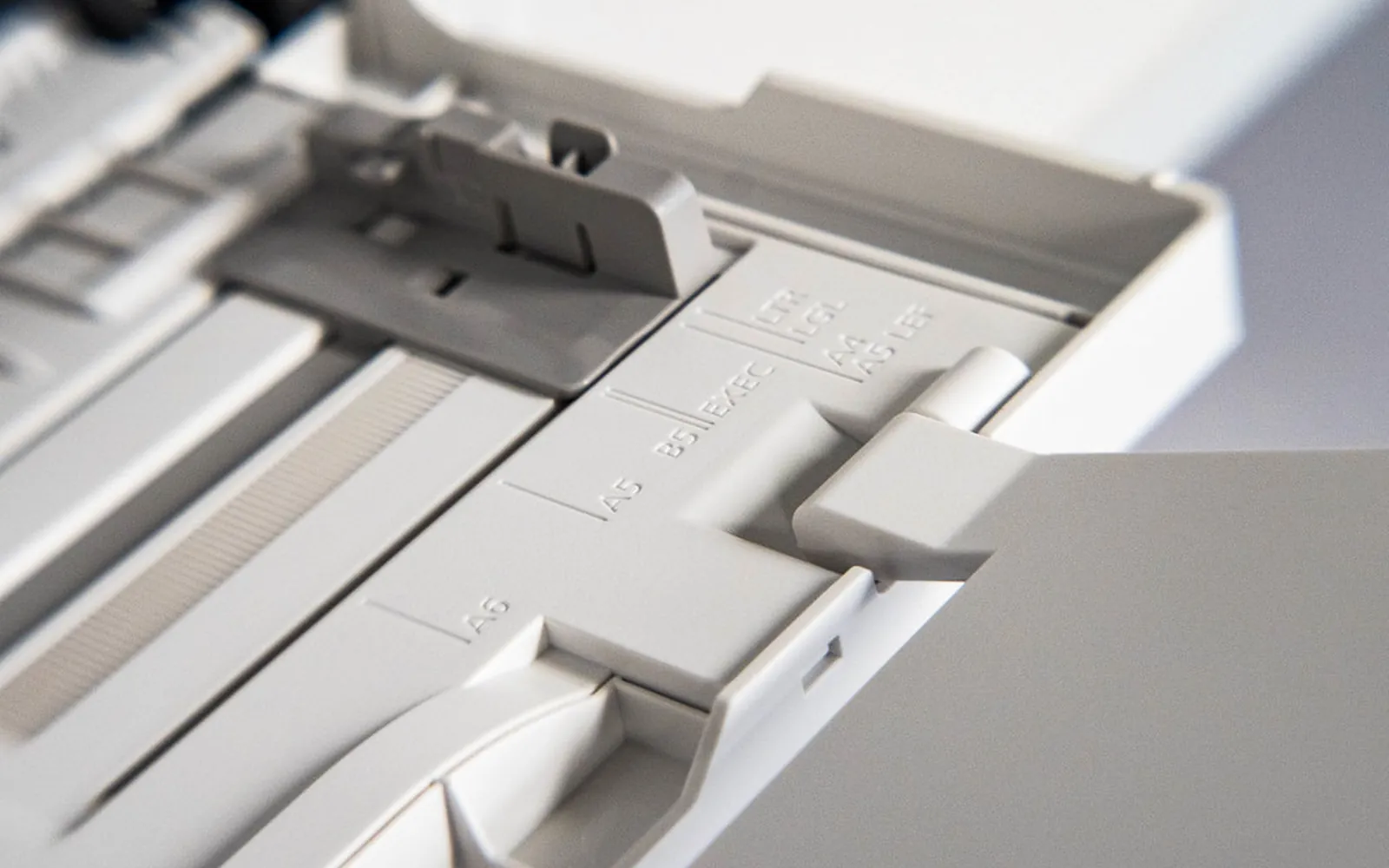
- Remove the paper tray and look into the opening with a torch.
- Open the rear access door, the duplex unit if it has one, and the front or top cover.
- Look for scraps of torn paper, labels, staples, paper clips, pen caps or anything else that does not belong.
- Remove what you can reach with your fingers. Pull paper slowly in the direction it travels.
Small objects that fall into the paper tray are a frequent cause of sudden grinding noises.
Step 3: Check the carriage path on inkjets
On an inkjet printer, the carriage holds the cartridges or print head and moves left and right. A carriage jam or carriage stalled message means it could not move as expected.
- Open the cartridge access cover with the printer unplugged.
- Look along the full path of the carriage for paper, packing tape, orange or coloured shipping pieces, or objects.
- On a new printer, check that all shipping tape and packing material has been removed, including inside.
- If the carriage can be moved by hand on your model, push it gently along its rail. If it does not move with light pressure, do not force it.
- Do not touch the thin plastic strip that runs along the carriage path (the encoder strip) unless your model’s guide explains how to clean it; a damaged strip causes more errors.
Step 4: Check the cartridges or toner
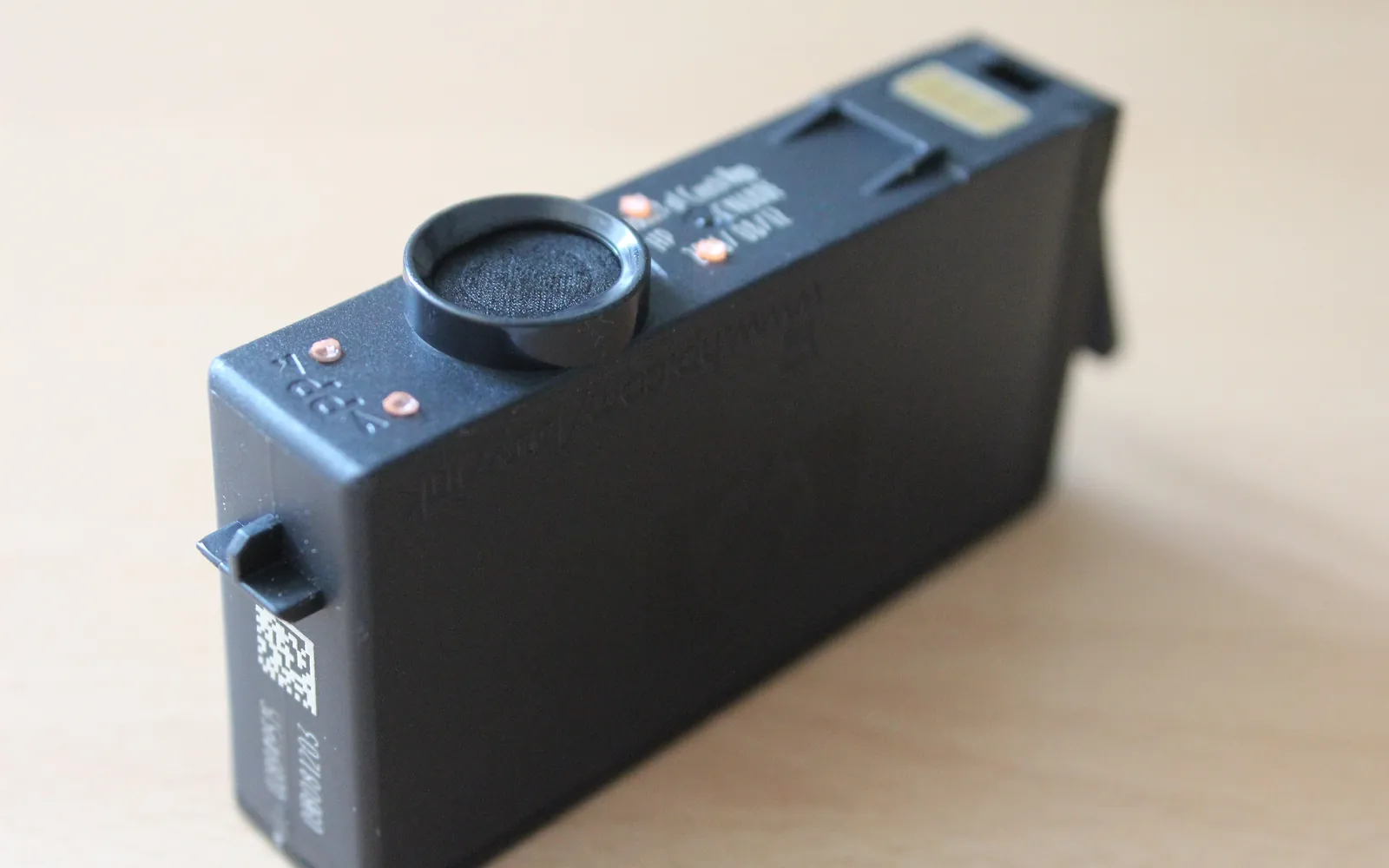
- Inkjets: a cartridge that is not fully seated can stick up and catch on the printer’s frame as the carriage moves. Press each one in until it clicks, and close the cartridge lid or latch fully.
- Laser printers: reseat the toner cartridge and the drum unit if your printer has a separate one. A cartridge that is not locked in can make a grinding noise as its gears turn against the printer’s gears.
If the printer then rejects a cartridge, see cartridge not recognized.
Step 5: Restart and test
Plug in and switch the printer on. Let it finish its start-up routine before printing. Then print the printer’s own test page.
- The noise has gone: the obstruction was the cause.
- The noise only happens when paper feeds: look at the pickup roller and paper path again, and see printer not picking up paper.
- The noise is still there with a clear path: go to Step 6.
Step 6: When it is mechanical wear
A grinding noise with a clear paper path and seated cartridges usually means a mechanical part is worn or broken: a gear with missing teeth, a clutch, a pickup assembly or, on laser printers, the fuser drive. You may see small pieces of plastic in the tray or under the printer.
At this point, stop using the printer. Running it with a broken gear can damage the motor or other gears. Options are the maker’s service, an independent repair shop, or, for an older low-cost printer, deciding whether repair is worth it. If you do repair it yourself, use the maker’s service information for your exact model and parts made for it.
Squeaks and slipping from the paper rollers
Not every noise is a gear or the carriage. A squeal or a rhythmic slipping sound when the printer picks up paper often comes from pickup rollers that have become smooth and are spinning against the sheet instead of gripping it. You may also notice paper feeding late, feeding crooked or not feeding at all. Cleaning the rollers with a lint-free cloth lightly dampened with water often stops the noise; rollers that are hard, cracked or flattened need replacing. How to clean printer rollers shows how to do it safely. Do not put oil or grease on rollers; it makes them slip more and can spread onto the paper.
Quick checklist
- Normal start-up or cleaning noise ruled out.
- Printer off and unplugged before looking inside.
- Paper path and carriage path clear of paper, tape and objects.
- Cartridges and toner seated, covers closed.
- Persistent grinding with a clear path treated as a repair job.
Frequently asked questions
Why is my printer making a grinding noise?
The most common causes are a scrap of paper, packing tape or a small object in the paper path or the carriage path, a paper jam that was not fully cleared, or a cartridge that is not seated properly. If the path is clear, gears or the drive mechanism may be worn or broken.
Is it normal for a printer to make noise when it turns on?
Yes. Most printers run start-up checks, and inkjets often prime or clean the print head when switched on, which can sound like grinding or pumping for a short while. A new, louder or repeated noise that comes with an error message is not normal.
What is a carriage jam?
On inkjet printers, the carriage is the part that holds the cartridges or print head and moves left and right. A carriage jam or carriage stalled error means it could not move freely, usually because of paper, packing material or an object in its path, or because a cartridge is not seated.
Can I move the print carriage by hand?
On many inkjets, with the printer switched off and unplugged, the carriage can be pushed gently along its rail. If it does not move with light pressure, do not force it; it may be locked in its parking position by design. Check your user guide for your model.
When should I stop using the printer?
Stop if you hear grinding with a clear paper path, see broken plastic or loose gear teeth, smell burning, or the noise gets worse. Running a printer with a broken gear can damage more parts.
Sources
Editorial team
The Fix a Printer team writes and updates independent printer troubleshooting guides, checking Windows and macOS steps against Microsoft and Apple documentation.