Print quality
Printer only printing in black and white: how to get color back
Written by Fix a Printer Editorial Team · Updated
A printer only printing in black and white when it is meant to print color is almost always obeying a setting rather than failing. Grayscale can be switched on in four places: the document, the app, the print driver and the printer itself. If those are all correct, the cause is the color supplies or the driver. This guide checks them in order, cheapest first.
If colors print but look wrong (pink instead of red, green tint, missing yellow), you want printer printing wrong colors instead. If black is the missing color, see printer not printing black.
Step 1: Print a test page from the printer
Most printers can print a status, configuration or quality report from their own menu. That page normally contains color.
- Color appears on the test page: the printer and its supplies can print color. The cause is a setting on the computer or in the document. Go to Step 2.
- The test page is grey or missing colors: the cause is in the printer: supplies, nozzles or a printer setting. Go to Step 5.
Step 2: Check the document and the app
- The document: a scan saved in grayscale, a PDF exported as black and white or a photo with no color data prints grey whatever you choose. Try printing a different document that clearly has color.
- Office apps: some apps have their own option to print in black and white or grayscale in their print or page setup menus. Make sure it is off.
- Browsers: the browser print dialog often has a Color option with Black and white as a choice, and it may remember the last setting you used.
- PDF readers: some PDF readers have a Print in grayscale checkbox in their print dialog. Clear it.
Step 3: Check the print driver in Windows 11
The driver remembers defaults that apply to every job.
- Open Settings > Bluetooth & devices > Printers & scanners and select the printer.
- Choose Printing preferences.
- Look for Color, Color mode, Print in grayscale, Black & white or Grayscale on the tabs. The wording depends on the maker.
- Set it to color and choose Apply.
Also check Printer properties > Advanced > Printing Defaults on drivers that show it, because some drivers keep a separate default there. If you have duplicate entries for the same printer, check each one or remove the extras.
Step 4: Check presets on a Mac
- In the print dialog, choose Show Details if you see only a short dialog.
- Look for a Black & White checkbox and clear it. Some drivers put color options in a menu in the middle of the dialog, under names like Color, Color Matching or Quality & Media.
- Check the Presets menu. If a saved preset includes black and white, switch to Default Settings or save a corrected preset.
Step 5: Check the color cartridges and nozzles
If the printer’s own test page lacks color, the supplies are the next suspect.
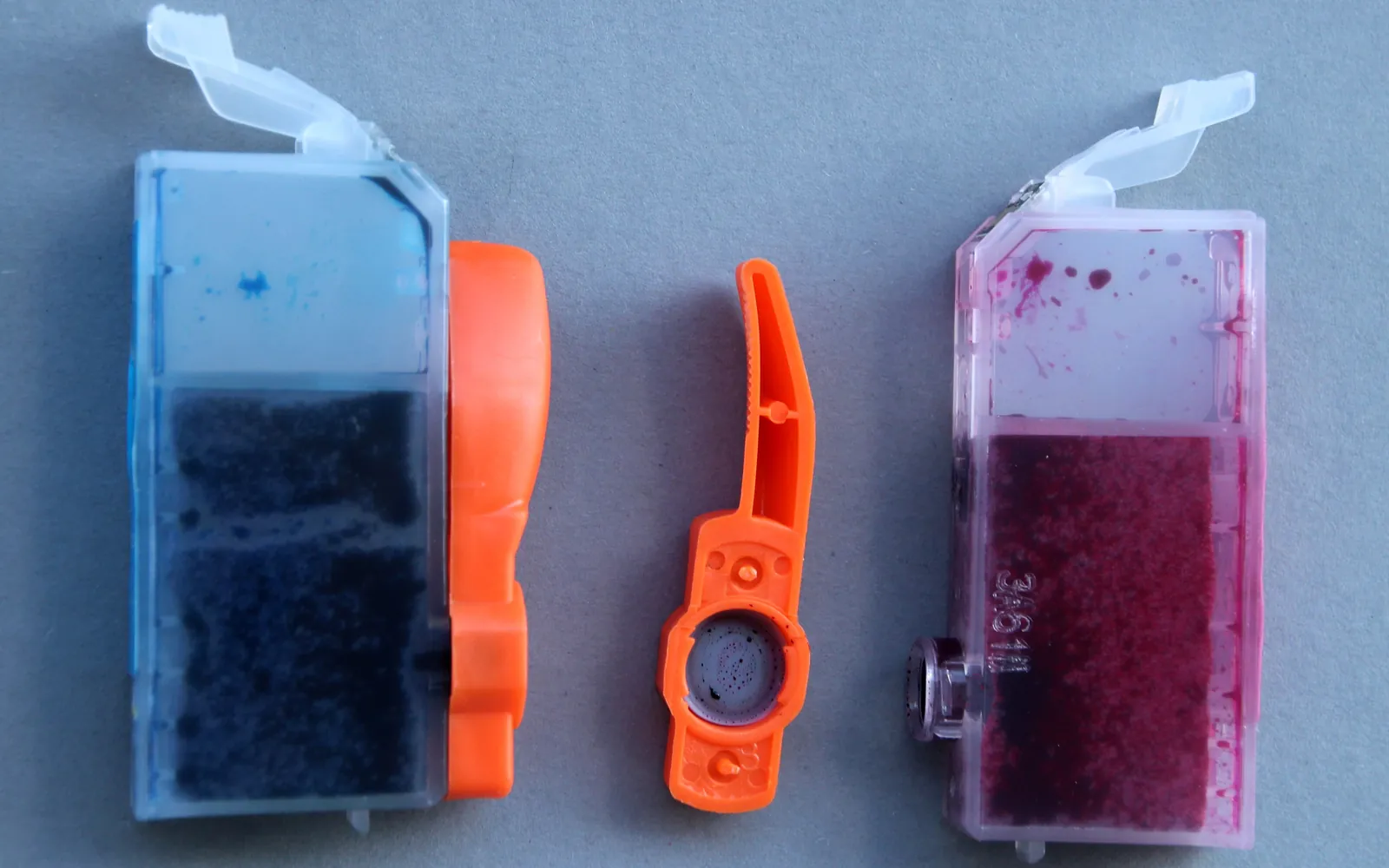
- Ink or toner levels: check the levels on the display or in the maker’s app. Some models print only black when a color cartridge is empty, and some laser printers offer a setting to continue in black when color toner runs out.
- Nozzle check on inkjets: print a nozzle check pattern from the maintenance menu. If the color blocks are blank or broken, run a head cleaning and check again. Long idle periods are the usual cause; printer ink dried out covers this in detail.
- Protective tape: a new color cartridge with its tape still on prints nothing in those colors.
- Recognition problems: if the printer refuses a color cartridge, see cartridge not recognized.
Step 6: Install the correct driver
A generic driver, a text-only driver or a driver for a monochrome model in the same family cannot send color. This happens when Windows picked a near match or someone chose a driver by hand.
- In Printers & scanners, open the printer and check Printer properties to see which driver it uses.
- If the name does not match your model, remove the printer.
- Install the current driver for your exact model from the printer maker, or let Windows install its built-in driver for printers that support it, then add the printer again.
Printer driver is unavailable explains how to remove an old driver package completely.
Step 7: Check printer and office restrictions
- Printer settings: some printers have a color restriction or a black-only default in their own menus or embedded web page, often under security, usage or default print settings.
- Office print management: in workplaces, administrators often limit color printing by user, group or printer to control costs. If color works for colleagues but not for you, or only on one printer, ask whoever manages the printers before changing anything.
- Print servers: printers shared from a server can have server-side defaults that override what you choose. Your IT team can check those.
Black and white only from one computer or one user
On a shared or office printer, it is common for one person to get colour and another only black and white. When that happens, the printer is fine and the difference lives in the computer or the account:
- Different drivers. One computer may use the full driver for the model and another a generic or basic driver that only offers grayscale. Compare the driver name in Printer properties on both machines and install the same one; see printer driver is unavailable if Windows will not install it.
- Saved defaults. Printing preferences are stored per user and per computer. A grayscale default set once on one machine does not affect the others. Check Printing preferences on the computer that prints in black and white.
- Shared queue on another PC. If the printer is shared through another Windows PC, the sharing PC’s default settings can apply to everyone. Check them there, or add the printer directly by IP address. If connecting to the share fails with an error code, see error 0x0000011b.
- Account restrictions. Office printers can limit colour per user or per group. Ask whoever manages the printer before changing printer-side settings.
If colour disappeared after you reset the printer, its defaults may have changed; see how to reset a printer to factory settings for what a reset changes.
Quick checklist
- Printer test page shows color.
- Document actually contains color.
- No grayscale option in the app, print dialog, driver defaults or Mac preset.
- Color cartridges have ink or toner and pass a nozzle check.
- Correct color driver for the exact model.
- No color lock on the printer or office policy in the way.
Frequently asked questions
Why is my color printer only printing in black and white?
Usually because grayscale or black and white is selected somewhere: in the app, in the print dialog, or saved as the default in Printing preferences. Other causes are empty or clogged color cartridges, a generic or monochrome driver, a color restriction set on the printer, or office print policy.
How do I turn off grayscale printing in Windows 11?
Open Settings > Bluetooth & devices > Printers & scanners, select the printer, choose Printing preferences and set the color option to Color (the tab and wording depend on the driver). Apply the change. Check the print dialog of the app you use as well, because some apps save their own choice.
How do I print in color on a Mac?
In the print dialog, show details if needed, then look for a Black & White checkbox or a color option in the driver's menus. Clear Black & White and, if you saved a preset with it, save a new preset or choose Default Settings.
Can a printer print color if the black cartridge is empty?
It depends on the model. Some printers can print using the remaining cartridges and some refuse to print until every cartridge is working. The reverse also exists: some models print black only when a color cartridge is empty. Check the user guide for your model.
Is the document itself in grayscale?
It can be. A scan saved in grayscale, a PDF converted to black and white, or an image with no color data will print grey whatever you choose. Print a different document with obvious color, such as the printer's own test page, to rule this out.
Why does one computer print in color and another only in black and white?
The printer is fine; the difference is in the computer. Compare the driver in use and the default printing preferences on both machines, and check whether one prints through a shared queue on another PC or has a colour restriction on an office printer.
Sources
Editorial team
The Fix a Printer team writes and updates independent printer troubleshooting guides, checking Windows and macOS steps against Microsoft and Apple documentation.