Paper jams and feeding
Printer not picking up paper: how to fix it
Written by Fix a Printer Editorial Team · Updated
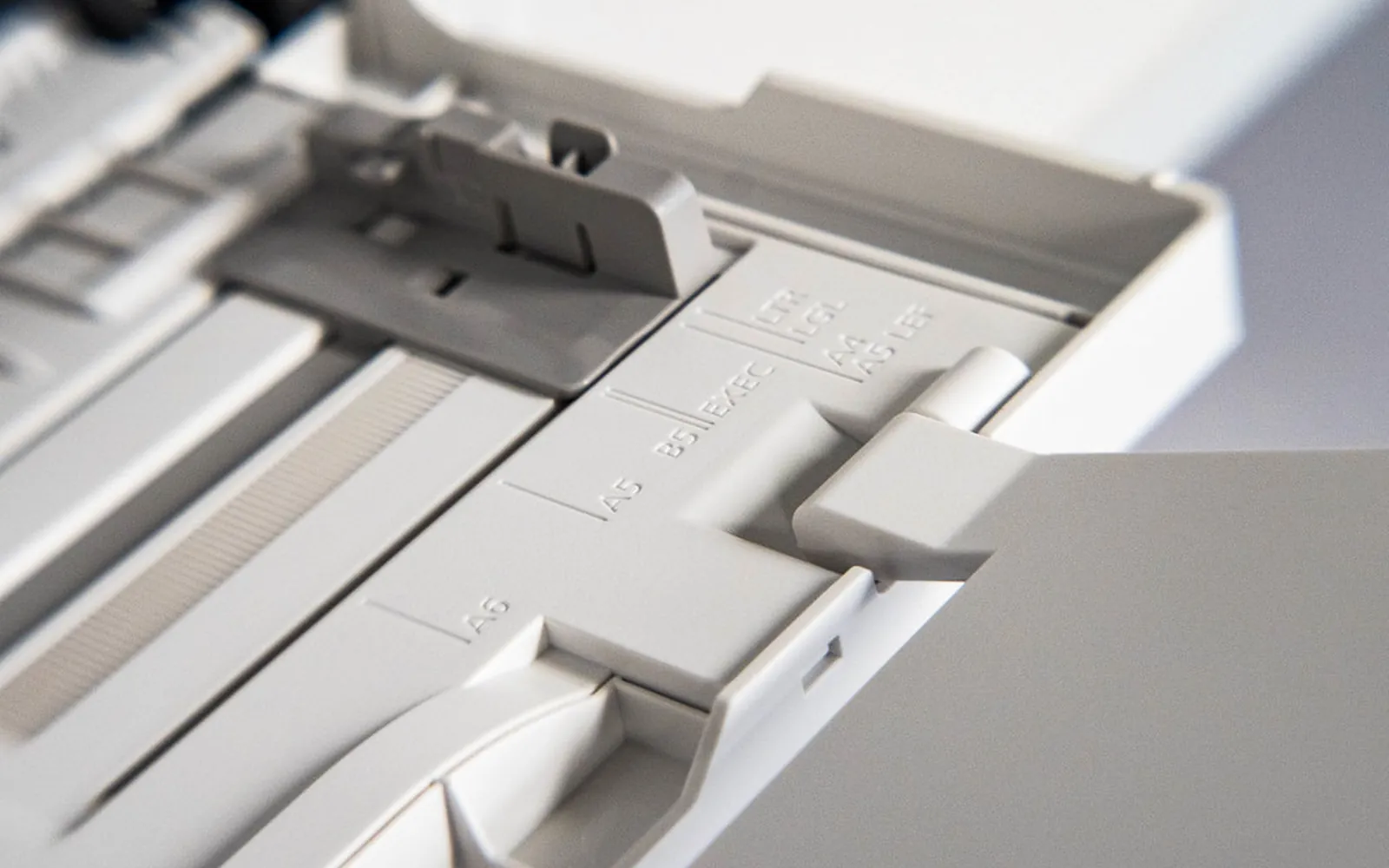
A printer not picking up paper usually makes a familiar sound: the motor runs, the rollers turn, and the sheet stays exactly where it is. Or the opposite happens, and three sheets go through at once and jam. Both problems come down to grip. The pick-up roller has to grab only the top sheet and push it in, and anything that changes that grip, from the paper itself to dust on the rubber, stops it working.
For paper that goes in and then gets stuck, see how to clear a paper jam. If several sheets go through together, read printer pulling multiple sheets, and if the printer says it is out of paper with a full tray, see printer says out of paper. If the printer reports a jam but nothing is inside, see paper jam but no paper.
Step 1: Fix the paper stack
Start with the paper, because it causes most feed problems.
- Take the stack out, fan it to separate the sheets, then tap the edges on a table so they line up.
- Do not overfill. Keep the stack below the maximum fill mark on the tray. Too much paper presses hard against the roller and it cannot move the top sheet.
- Do not underfill either. Some printers struggle with only one or two sheets; load at least ten.
- Use flat, dry paper. Curled paper from a damp room or the end of an open pack misfeeds. Turn the stack over or use fresh paper.
- Do not mix types. Different weights or finishes in one tray feed unevenly.
Step 2: Set the paper guides
The guides keep the stack straight. If they squeeze it, the paper bows and the roller cannot pull it. If they are too loose, the paper skews and the printer may stop. Slide each guide until it just touches the edge of the stack, without bending it.
On printers with a rear feed slot, push the paper down until it stops, but do not force it past the stop.
Step 3: Check the tray and paper settings
A printer with more than one tray, or with a rear feeder and a front cassette, feeds from the tray that the print job asks for. If that tray is empty, you get “out of paper” even though another tray is full.
- In the print dialog, look for paper source or tray, and choose the tray that has paper, or choose automatic selection.
- Make sure the paper size and paper type match what is loaded. Many printers check the size set on the control panel when you insert a tray; if it says Letter and you loaded A4, it may refuse to feed.
- On the printer’s own menu, check the tray settings for size and type.
Step 4: Clean the pick-up rollers
Rubber rollers collect paper dust and become shiny over time, so they slip instead of gripping.
- Turn the printer off and unplug it.
- Remove the paper tray and look into the slot. The pick-up roller is usually a rubber wheel or a pair of wheels above the front of the stack. On rear-feed inkjets, the rollers are at the bottom of the rear slot.
- Lightly dampen a lint-free cloth with water. Wring it so it does not drip.
- Wipe each roller while turning it with your finger, so you clean the whole surface.
- Let the rollers dry for a few minutes, then reload paper and test.
Some printers have a roller cleaning function in the maintenance menu, which turns the rollers against a sheet of paper. Use it if available; it reaches rollers you cannot.
Step 5: Several sheets at once
If the printer takes multiple sheets:
- Fan the paper thoroughly; humid weather makes sheets stick together.
- Remove some paper from the tray.
- Check the separation pad, a small cork or rubber pad opposite the pick-up roller that holds back the second sheet. If it is shiny or worn, it no longer works. On many office printers it is a replaceable part.
Step 6: Check for blockages
A small object or scrap in the paper path can stop the paper as it starts moving. With the printer unplugged, look into the tray slot with a torch and remove anything that does not belong there: paper scraps, labels, clips. Check that any sensor lever in the tray area moves freely.
Step 7: Special paper, envelopes and card
Photo paper, card, envelopes and labels are thicker or slicker than plain paper, so a roller that copes with plain paper can still fail with them.
- Load fewer sheets. A small stack of photo paper or a handful of envelopes feeds better than a full tray.
- Check the side. Photo paper has a printable side, usually the glossier one, and the manual shows which way it faces in the tray. Paper loaded the wrong way round can slip as well as print badly.
- Set the paper type. In the print dialog, choose the paper type that matches the media. On many printers this changes the feed speed and the amount of ink used, and it also matters for quality: a glossy sheet printed with a plain-paper setting often comes out wet and smeared, which is covered in printer smudging ink.
- Use the right path. Many printers have a rear slot or manual feed for heavy media, with a straighter path than the main cassette. The specifications list the weights each tray accepts.
- Flatten curled envelopes and close their flaps before loading. Envelopes with a window or a self-seal strip can stick to each other.
When the rollers are worn out
If clean rollers still slip, the rubber is worn. On many office laser printers, pick-up rollers and separation pads are sold as maintenance kits and can be swapped in minutes, with instructions from the manufacturer. On small inkjets, the rollers are often not sold separately, and a repair may cost more than the printer is worth.
Quick checklist
| Problem | Check |
|---|---|
| Rollers turn, paper does not move | Stack height, curled paper, dirty rollers |
| “Out of paper” with paper loaded | Tray selection, size setting, paper pushed in correctly |
| Several sheets at once | Fan paper, less paper, worn separation pad |
| Paper goes in crooked | Guides, mixed paper, worn roller on one side |
| Only special paper fails | Use the rear or manual feed, one sheet at a time |
If the printer feeds now but prints blank, go to printer printing blank pages. If the page comes out pale or washed out after a long period of feed problems, the ink may have dried in the nozzles while the printer sat unused; see printer printing faded. For other problems, see the printer troubleshooting guide.
Frequently asked questions
Why does my printer say out of paper when there is paper in the tray?
The printer may be trying to feed from a different tray, the paper may be pushed in too far or not far enough to reach the pick-up roller, or the paper sensor may be dirty or stuck. Check the tray setting in the print dialog first.
How do I clean the pick-up rollers?
Switch the printer off and unplug it, find the rubber rollers above or behind the paper tray, and wipe them with a lint-free cloth lightly dampened with water while turning them with your finger. Let them dry before printing.
Why does my printer pull several sheets at once?
Paper that sticks together because of humidity or static, an overfilled tray, or a worn separation pad that should hold back all but the top sheet.
Can I use rubbing alcohol on printer rollers?
Some manufacturers allow it for certain rollers and others recommend only water, because alcohol can dry out some rubber compounds. Water is the safe choice unless your printer's manual says otherwise.
Why does the printer feed plain paper but not photo paper or envelopes?
Thick or glossy media needs a lower stack, the correct paper type setting and often a specific tray or rear feed. Load a few sheets at a time, set the matching paper type in the print dialog and check the manual for the supported weights.
Sources
Editorial team
The Fix a Printer team writes and updates independent printer troubleshooting guides, checking Windows and macOS steps against Microsoft and Apple documentation.

