Paper jams and feeding
Printer paper size mismatch error: how to match the document, driver and tray
Written by Fix a Printer Editorial Team · Updated
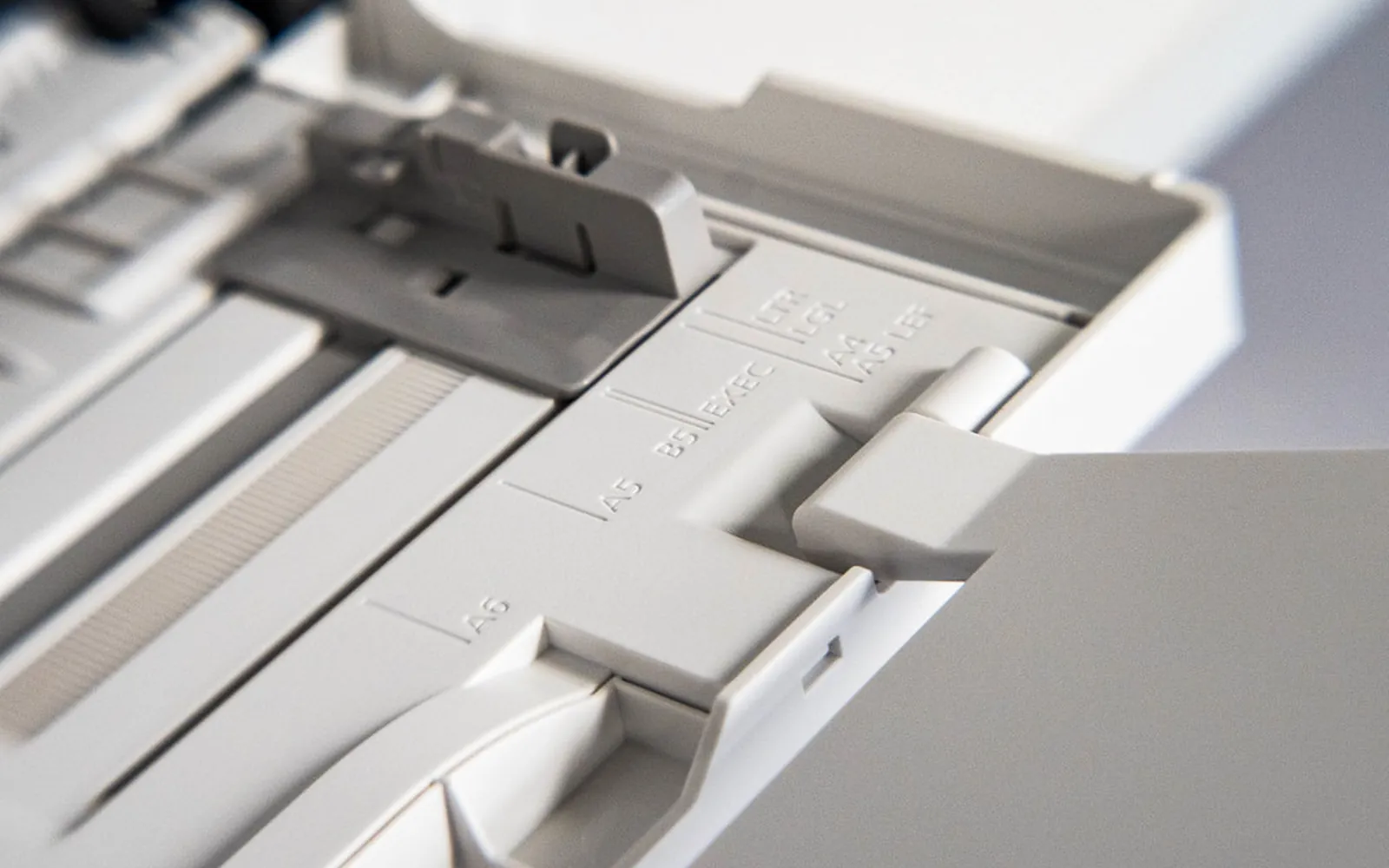
A printer paper size mismatch error stops a job with a message such as “paper size mismatch”, “load Letter” or “load A4 in tray 1”, even though the tray is full. The printer is not confused about having paper. It is pointing out that the size the job asks for is not the size it believes is in the tray. Three settings have to agree, and this guide makes them agree so the message stops coming back.
If the printer says it has no paper at all, see printer says out of paper. If pages print but the edges are cut off or everything is shrunk, see printer cutting off edges and printer printing too small.
The three settings that must agree
Every print job carries a paper size. The printer compares it with what it thinks is loaded:
- The document’s page size: set in the app, for example Word’s Layout > Size or a PDF’s own page size.
- The driver’s paper size: set in the print dialog and in the printer’s Printing preferences.
- The tray’s paper size: stored by the printer, set on its control panel or web page, or detected from the tray’s guides.
When the document and driver say A4 but the tray is set to Letter, or the other way round, many printers stop with a mismatch message. Others print anyway and the page comes out cropped, scaled or with a blank strip.
Why A4 and Letter cause most of it
A4 is 210 x 297 mm and is the standard size in most of the world. US Letter is 8.5 x 11 inches (about 216 x 279 mm) and is standard in the United States, Canada and a few other countries. They are close enough that people rarely notice which one a document uses, but different enough for the printer to object.
Typical sources of a mismatch:
- a document or template made in another country,
- a downloaded PDF, form or ticket created at the other size,
- a new computer or a reinstalled driver that defaulted to the wrong size for your region,
- someone loading a different size in a shared office printer.
Step 1: Read the message
Note exactly what the printer asks for and which tray it mentions. “Load Letter in Tray 2” tells you the job wants Letter and is trying Tray 2. That points straight at which setting to change.
If the printer offers OK, Continue or Use loaded paper, pressing it usually prints this one job on the loaded paper. That is fine in a hurry, but content may be cut off or scaled, and the error will return next time.
Step 2: Check the document’s page size
- Word: Layout > Size. Choose the paper you want to use.
- Excel: Page Layout > Size.
- PDF readers: a PDF has a fixed page size. In the print dialog choose Fit, Shrink oversized pages or Choose paper source by PDF page size as needed, and make sure the paper size in the dialog matches your tray.
- Browsers: the paper size is in the print dialog, often under More settings.
Step 3: Check the print dialog and driver
- In the print dialog, check Paper size and Paper source or Tray. Set the size to the loaded paper and the source to the tray you loaded or to automatic.
- To fix the default for every app in Windows, open Settings > Bluetooth & devices > Printers & scanners, select the printer, choose Printing preferences and set the paper size on the paper, layout or basic tab.
- On a Mac, set Paper Size in the print dialog. The default paper size for new jobs is in System Settings > Printers & Scanners.
If the paper source points to a tray you did not load, the printer asks for paper there. Printer says out of paper covers paper source settings in more detail.
Step 4: Set the tray’s paper size on the printer
The printer’s own record of what is in each tray is the setting people most often forget.
- Many printers ask for the paper size and type when you close a tray or load the rear tray. Choose the size actually loaded instead of accepting the old value.
- Others have a tray setup, paper setup or paper settings menu on the control panel or the built-in web page.
- Some detect the size from the tray guides. Slide the length and width guides until they touch the stack without bending it. A guide left at the A4 position with Letter loaded can trigger the error.
If the tray setting is right but the printer still reports the wrong size, the guide sensor may not be registering. Remove the tray, check nothing is stuck behind it, refit it firmly and try again.
Step 5: Stop it coming back
Once a job prints cleanly, make the correct size the default everywhere:
- Driver default: set in Printing preferences, as in Step 3.
- App templates: in Word, change the page size and choose Set As Default in the Page Setup dialog so new documents use it.
- Operating system region: on a new computer, the region setting can decide the default paper size. Check that your country or region is correct in the system settings.
- Shared printers: on an office printer, agree which size lives in which tray and label the trays.
When the error only happens with one tray
If one tray works and another always reports a mismatch, the problem is that tray’s setting or its guides, not the document. Open the tray, check the size dial or setting if it has one, set the size on the printer’s panel and push the guides in. If the printer still insists on the wrong size, try the tray in the main slot (if trays are interchangeable on your model) to see whether the fault follows the tray. A tray that never reports the right size, whatever you set, may have a damaged guide or sensor and is worth checking with a repair service.
The opposite case, where the printer takes paper from a tray you did not intend, is a paper source setting. Set the source in the print dialog to the tray you want rather than automatic selection.
Envelopes, labels and card
Special media make mismatches more likely because they have their own sizes. Choose the exact envelope or label size in the document and the print dialog, set the tray or manual feed to that size and type on the printer, and use the tray the printer’s manual recommends for that media. If special media also jam or feed crooked, see printer printing skewed and printer not picking up paper.
Quick checklist
- Message read: which size the job wants and which tray it is using.
- Document page size set to the paper you will use.
- Print dialog and driver paper size and source matching the tray.
- Tray size and type set on the printer, guides against the stack.
- Defaults fixed in the driver, app template and system region.
Frequently asked questions
What does paper size mismatch mean on a printer?
The print job asks for one paper size, such as A4, but the printer believes the tray holds another, such as Letter. The printer stops and asks you to load the right paper or confirm. Making the document, driver and tray settings agree removes the error.
Why does my printer keep asking for A4 when I have Letter loaded?
The document or the driver is set to A4. This is common with documents from another country, templates and some PDFs. Change the page size in the document or the print dialog to Letter, and set Letter as the driver's default paper size.
How do I change the paper size of a tray?
Most printers ask for the paper size when you close or load a tray, or have a tray or paper setup option on the control panel or built-in web page. Some detect the size from the tray guides. Set it to the paper you actually loaded and push the guides against the stack.
Can I just press OK to continue?
Often yes, and the page will print on the paper in the tray. But content may be cut off, scaled or leave a blank strip, and the error will come back on the next job. Fixing the settings is better than confirming every time.
How do I change the default paper size in Windows 11?
Open Settings > Bluetooth & devices > Printers & scanners, select the printer, choose Printing preferences and set the paper size on the paper or layout tab. Many apps also have their own default, such as Word's page size in the Normal template.
Sources
Editorial team
The Fix a Printer team writes and updates independent printer troubleshooting guides, checking Windows and macOS steps against Microsoft and Apple documentation.

