Paper jams and feeding
Printer says out of paper when paper is loaded: what to check
Written by Fix a Printer Editorial Team · Updated

When a printer says out of paper while the tray is plainly full, the printer is usually not lying about what it sees. Either the job is asking for paper from somewhere else, the printer thinks the paper in the tray is the wrong kind, or the sheet never reaches the sensor that confirms paper is feeding. Each of these has a simple check, and only one of them involves the hardware.
If the printer instead reports a jam with no paper inside, read printer paper jam but no paper. If the message names a paper size, such as load Letter or load A4, see printer paper size mismatch error. If it tries to feed and nothing moves without any message, see printer not picking up paper. Other symptoms are listed in the printer troubleshooting guide.
Step 1: Check which tray the job is asking for
Many printers have more than one paper source: a main cassette, a second tray, a rear tray or a manual feed slot. If the print job is set to a source you have not loaded, the printer asks for paper there even though the main tray is full.
- Windows 11: in the app’s print dialog, open Printer properties or More settings and look for Paper source, Source, Tray or Paper feed. Choose the tray you loaded, or Automatically select. To change the default for every job, open Settings > Bluetooth & devices > Printers & scanners, select the printer and choose Printing preferences.
- macOS: in the print dialog, look for the paper feed options (their name depends on the app and driver) and choose All pages from: Auto Select or the tray you loaded.
- Templates and old documents: some documents, especially from word processors and label templates, store a tray choice in their page setup. If only one document triggers the error, check its page setup.
Watch the printer’s display when the error appears. Many printers name the tray they want, for example “Load paper in Tray 2” or “Load paper in manual feed”.
Step 2: Match paper size and type to the tray
Printers that store a size and type for each tray will refuse a job that does not match, and some show that as a load paper message. If the job asks for A4 and the tray is set to US Letter, the printer may wait for A4 paper that never arrives.
- On the printer’s control panel, check the paper size and type set for the tray.
- In the print dialog, check the paper size and type for the job.
- Make both match the paper you actually loaded.
A size mismatch that the printer does accept can produce clipped pages instead; printer cutting off edges explains that case.
Step 3: Reload the tray properly
- Pull the tray all the way out and push it back in firmly until it clicks. A tray that is slightly out may not be detected.
- Make sure the stack is not too small. A handful of curled sheets at the bottom of a tray may sit below where the pickup roller reaches.
- Do not overfill past the fill mark either; an overfilled stack can stop the tray closing properly.
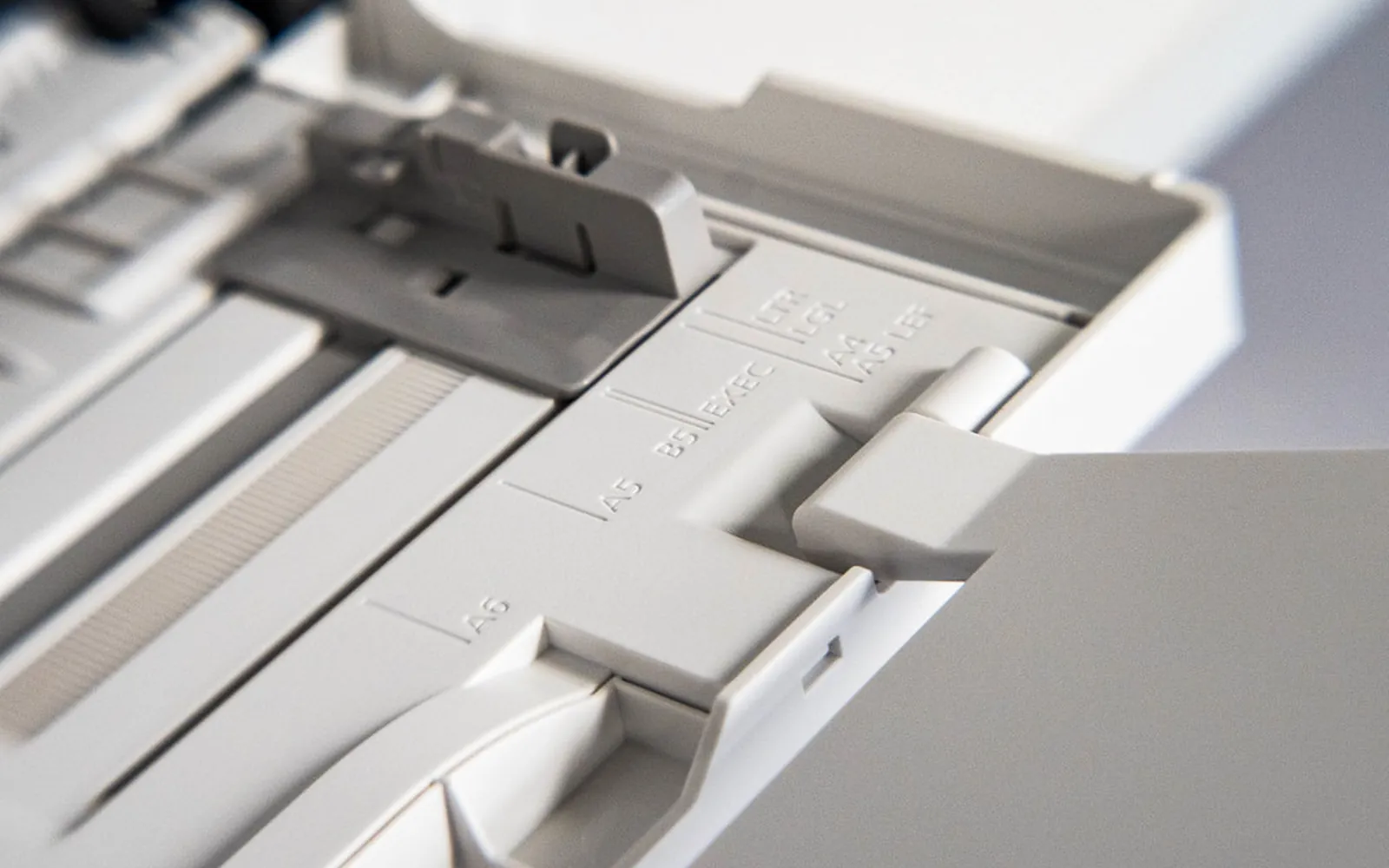
- Set the side and rear guides so they touch the paper. On some trays the rear guide also tells the printer which size is loaded.
- For the rear tray or manual slot, push the sheets in until they meet resistance, without forcing them.
Step 4: Restart the printer
Paper sensors and their logic can get stuck in the wrong state, especially after a jam was cleared while the printer was on. Switch the printer off with its power button, wait about a minute, then switch it back on and let it finish its start-up routine before printing again.
Step 5: Clean the pickup rollers
If the printer makes feeding noises but then says out of paper, the pickup roller is probably turning without moving the sheet. Many printers cannot tell the difference between an empty tray and paper that will not move, so they report it as out of paper or as a feed error.
- Switch off and unplug the printer.
- Remove the tray and find the pickup roller using the user guide for your model.
- Wipe the roller with a lint-free cloth lightly dampened with water, turning it to reach the whole surface.
- Let it dry fully before switching back on.
Old, shiny or cracked rollers may need replacing. Printer not picking up paper covers roller wear in more detail. If the printer grabs paper but sometimes takes two sheets, see printer pulling multiple sheets.
Step 6: Look for a blocked paper sensor
Inside the paper path, many printers use a small plastic flag or an optical sensor to detect paper. A scrap of paper, a label or a bent flag can make the printer believe the tray is empty.
- With the printer off and unplugged, remove the tray and look into the opening with a torch.
- Remove any visible scraps with your fingers. Do not use sharp tools, and do not poke at parts you cannot see clearly.
- If a flag is visibly broken, the manufacturer’s service information for your model is the right next step.
Step 7: Rule out the computer side
If none of the above helps, print the printer’s own configuration or test page from its menu. If that prints, the hardware can feed paper and the problem is in the job settings or driver. Reinstall the current driver for your model; printer driver is unavailable covers a clean reinstall in Windows 11. If jobs then wait in the queue without printing, check that the printer is not paused in Windows 11.
Rollers that spin but do not grip
On many printers there is no separate sensor that sees paper in the tray before printing. The printer starts the pickup roller and waits for the sheet to reach a sensor further along the paper path. If it does not arrive in time, the printer concludes the tray is empty. Smooth, dusty or glazed pickup rollers are therefore a common cause of this message, especially when you can hear the roller turn and the sheet barely moves. A clean with a lightly dampened lint-free cloth often restores grip; worn, hard or cracked rollers need replacing. How to clean printer rollers explains how to reach them safely and how to recognise rollers that are past cleaning.
Summary checklist
- Paper source set to the loaded tray or to automatic.
- Same paper size and type in the job, the tray setting and the tray.
- Tray fully inserted with enough paper and guides set.
- Printer restarted after any jam.
- Clean pickup rollers and a clear sensor.
Most out-of-paper messages with paper loaded are fixed at Step 1 or Step 2, without opening the printer at all.
Frequently asked questions
Why does my printer say out of paper when there is paper?
The print job may be set to use a different tray or manual feed, the paper size in the job may not match the tray, the tray may not be fully inserted, or the printer may be failing to grip the paper. A blocked paper sensor is a less common cause.
How do I make the printer use the right tray?
In the print dialog or Printing preferences, set Paper source (sometimes called Tray, Paper feed or Source) to the tray you loaded or to Automatically select. On the printer, check that the tray's paper size and type settings match the paper in it.
Can dirty rollers cause an out of paper message?
Yes. If the pickup roller turns but cannot move the top sheet, the printer never sees paper arrive and many models report that as out of paper or as a paper feed problem. Cleaning or replacing the roller fixes it.
Why does it only happen on the last few sheets?
Some trays need a minimum stack height for the pickup roller to reach the paper, and a few curled sheets at the bottom of a tray may not feed. Add more paper of the same type and try again.
Should I reset the printer?
Switching the printer off, waiting a minute and switching it on again clears a sensor state that got stuck after a jam. A full factory reset is rarely needed for this error and erases network settings, so try the other checks first.
Sources
Editorial team
The Fix a Printer team writes and updates independent printer troubleshooting guides, checking Windows and macOS steps against Microsoft and Apple documentation.